When someone has an active AFDO Membership, they are given access the the AFDO Community Portal. Within the portal, all active members have access the the Member Directory (as shown below).
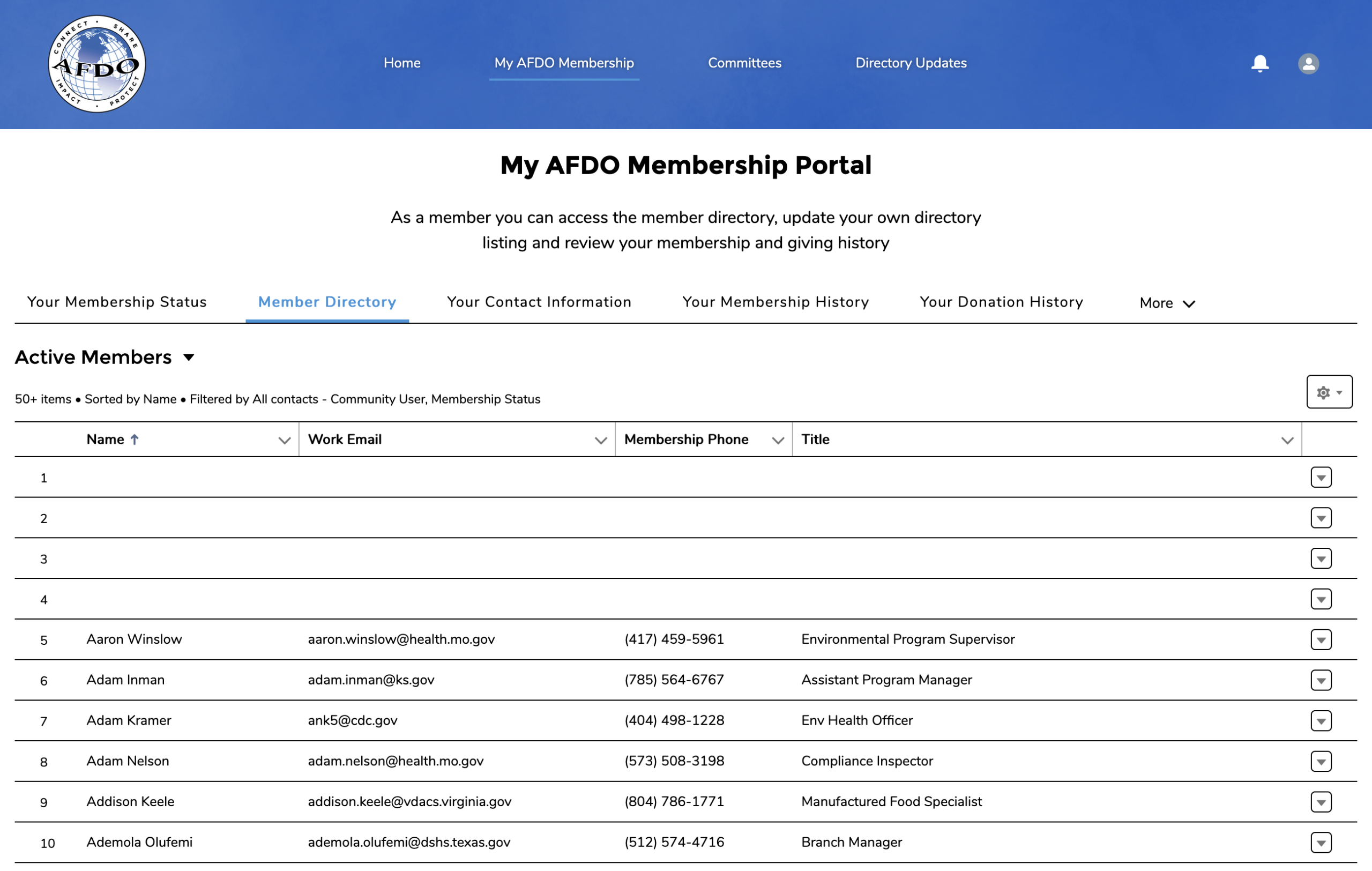
If any details in the directory need to be updated, follow the instructions below.
Prerequisite: You must have a Salesforce ADMIN account to reset passwords for committee members or for AFDO members.
1
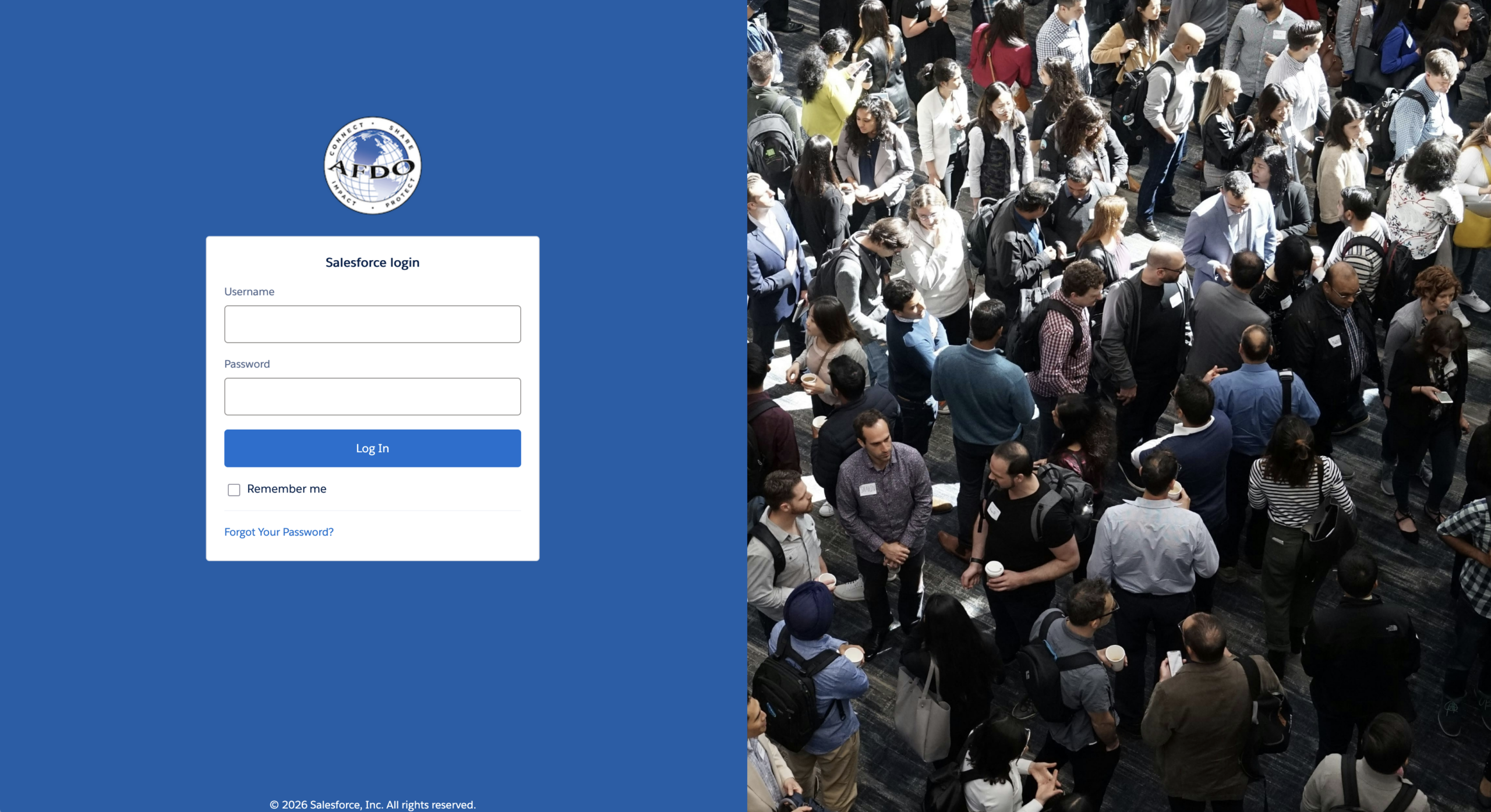
Login to AFDO’s Salesforce dashboard
- Navigate to https://afdo.my.salesforce.com/
- enter you email address in the username field
- enter your password, in the password field
- Click the LOG IN button
2
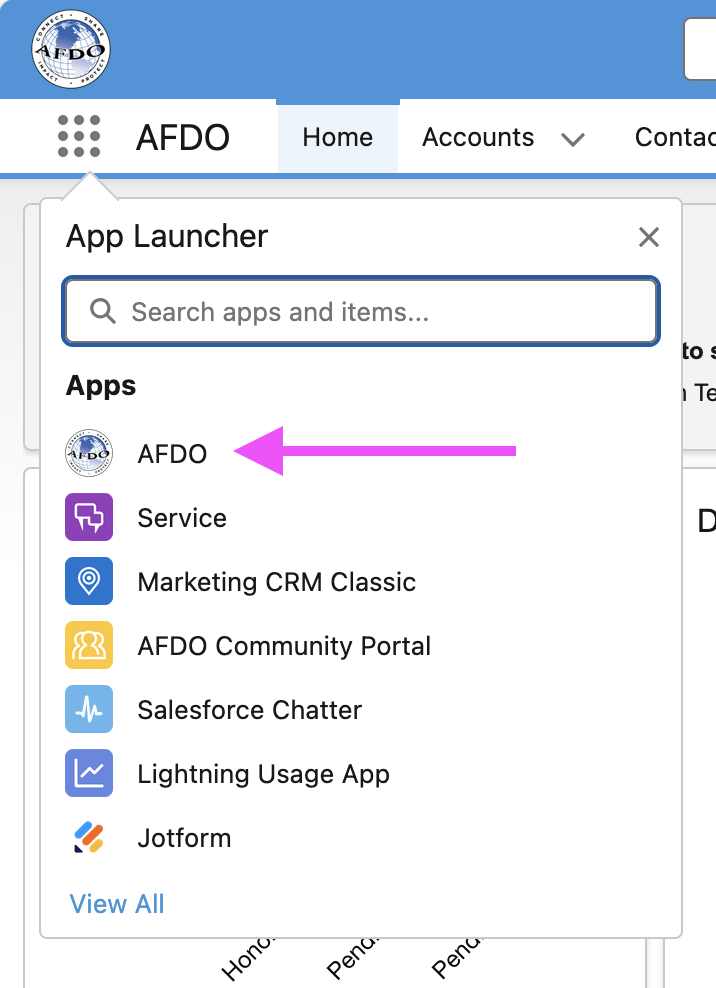
Open the AFDO app
- In the upper left corner, click the 9-dot App Launcher menu below the AFDO logo
- then select “AFDO” in the app menu
3
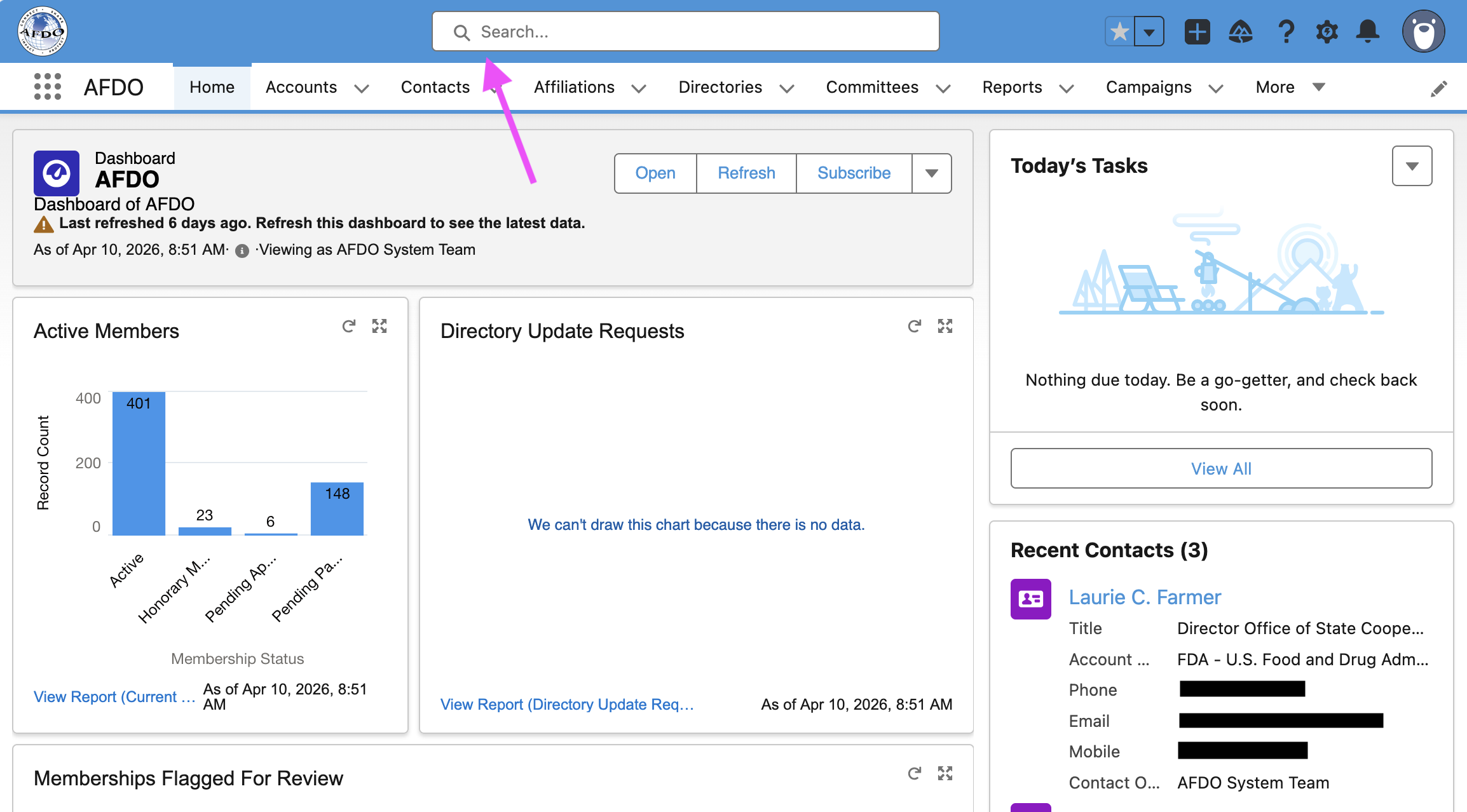
Search for the member
- Use the search bar at the top of the screen and enter the member’s name.
4
Open the member’s Contact record to edit the Membership Visibility Information
- On the contact page, look for the action bar in the upper right
- click the down arrow to reveal additional options
- select Update Membership Visible Fields.
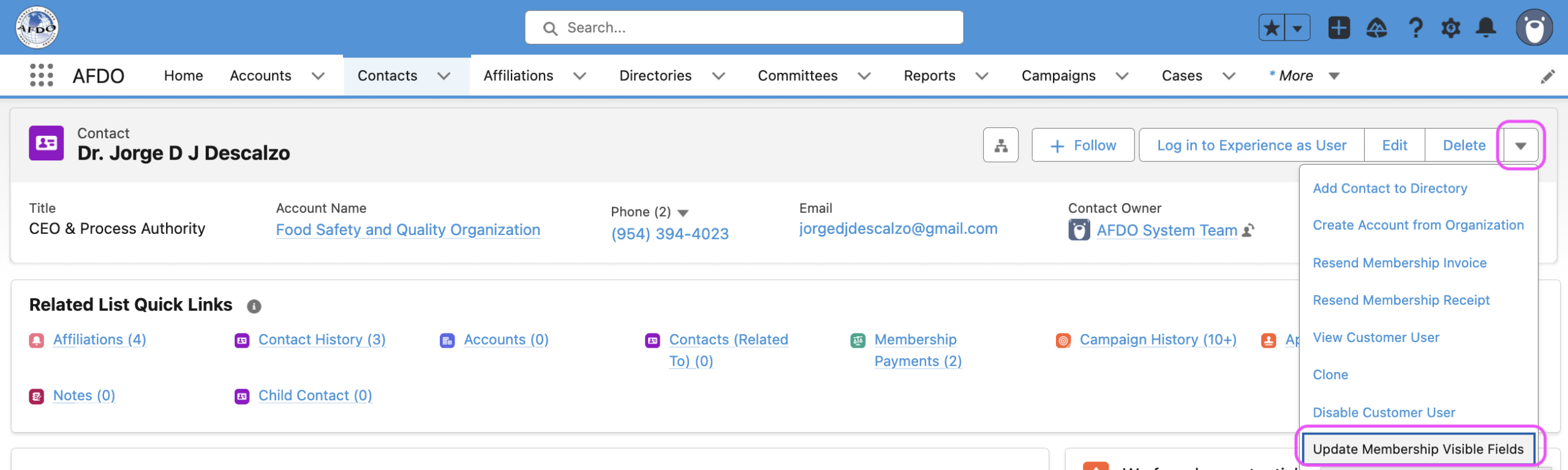
If you don’t see “Update Membership Visible Fields” in the dropdown, the user does NOT have an active membership.
5
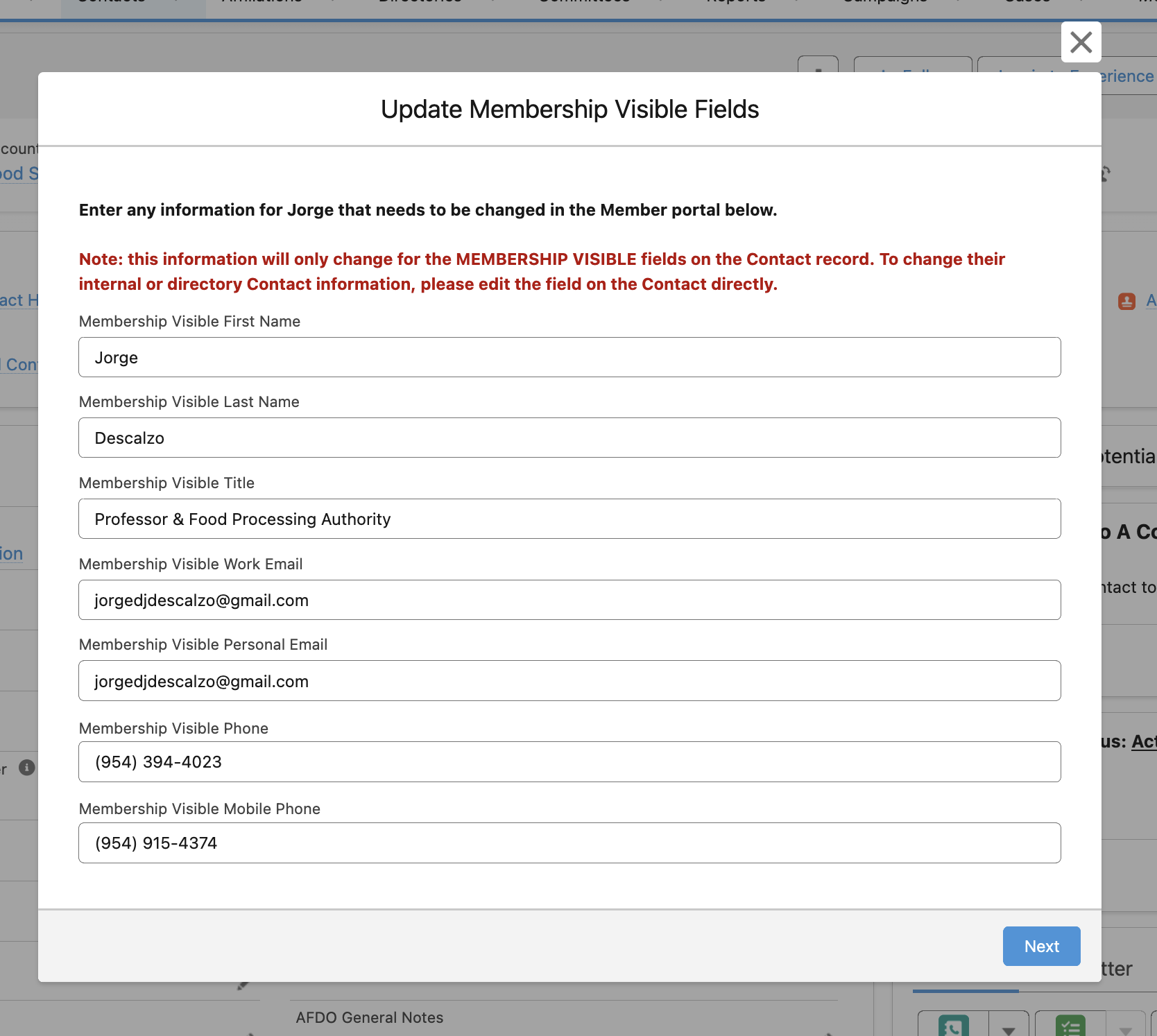
Update the Member Directory Information
- The ‘Update Membership Visible Fields’ screen will load with pre-filled information.
- Find the information you want to update, and make the needed changes.
- When you are done, click the NEXT button.
That’s it
The Member Directory within the Community portal will immediately be updated. Some members may attempt to update the Member Directory on their own by making changes to the “Contact Information” tab of their community portal profile. The information listed on the “Contact Information” tab is not currently connected to the Member Directory.
When you update the information on the Member Directory, it is good practice to also update the information on their community portal user account (view instructions here).