Prerequisite: You must have a Salesforce ADMIN account to reset passwords for committee members or for AFDO members.
1
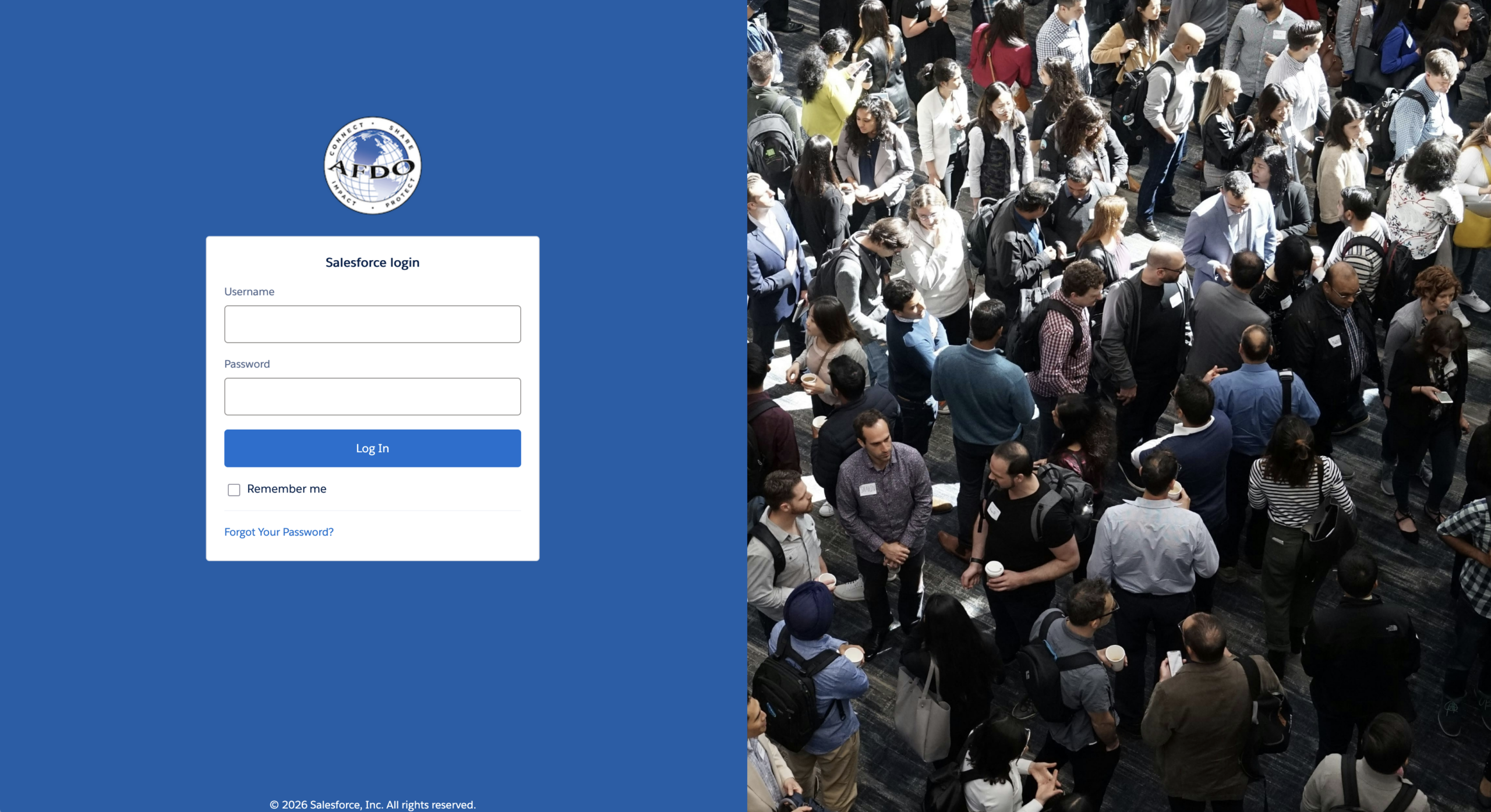
Login to AFDO’s Salesforce dashboard
- Navigate to https://afdo.my.salesforce.com/
- enter you email address in the username field
- enter your password, in the password field
- Click the LOG IN button
2
Navigate to the SETUP page
- In the upper right corner of your screen, click the GEAR icon.
- From the gear dropdown, click the SETUP link.
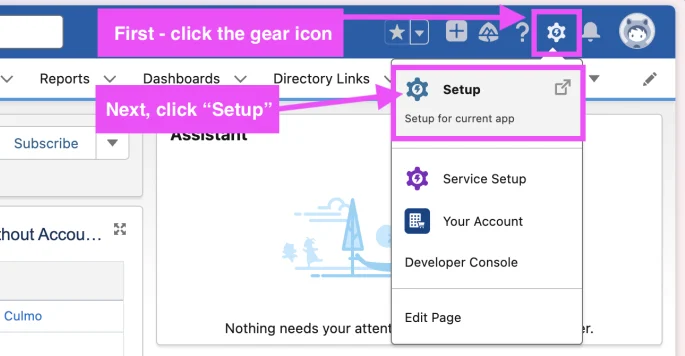
click the gear icon, then click the setup link in the dropdown
3
From the Setup page, navigate to the USERS page
- In the live search bar on the left, type the word: Users
- You will see several results. Click the word Users at the bottom of the list.

enter USERS in the search bar, then click the USERS link in the results
4
Select Active Community User List
- Next, you’ll be on the USERS page.
- Find the VIEW dropdown field, and select ACTIVE USERS – COMMUNITY
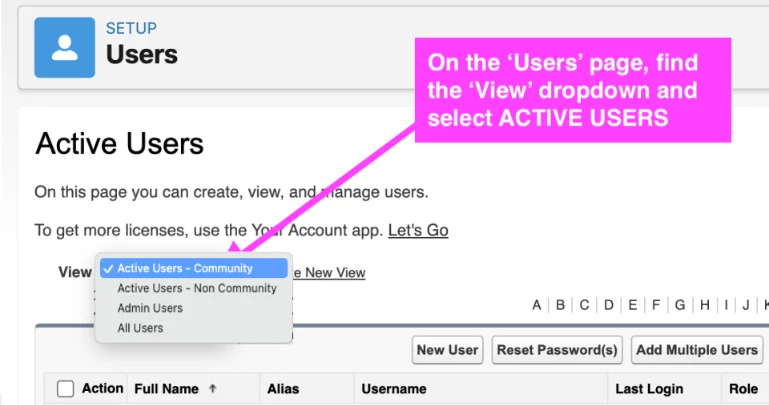
NOTE: the “Active Users – Non Community” list consists of internal AFDO staff member login, connected to the AFDO Salesforce administrative site (https://afdo.my.salesforce.com/) – NOT the community portal.
5
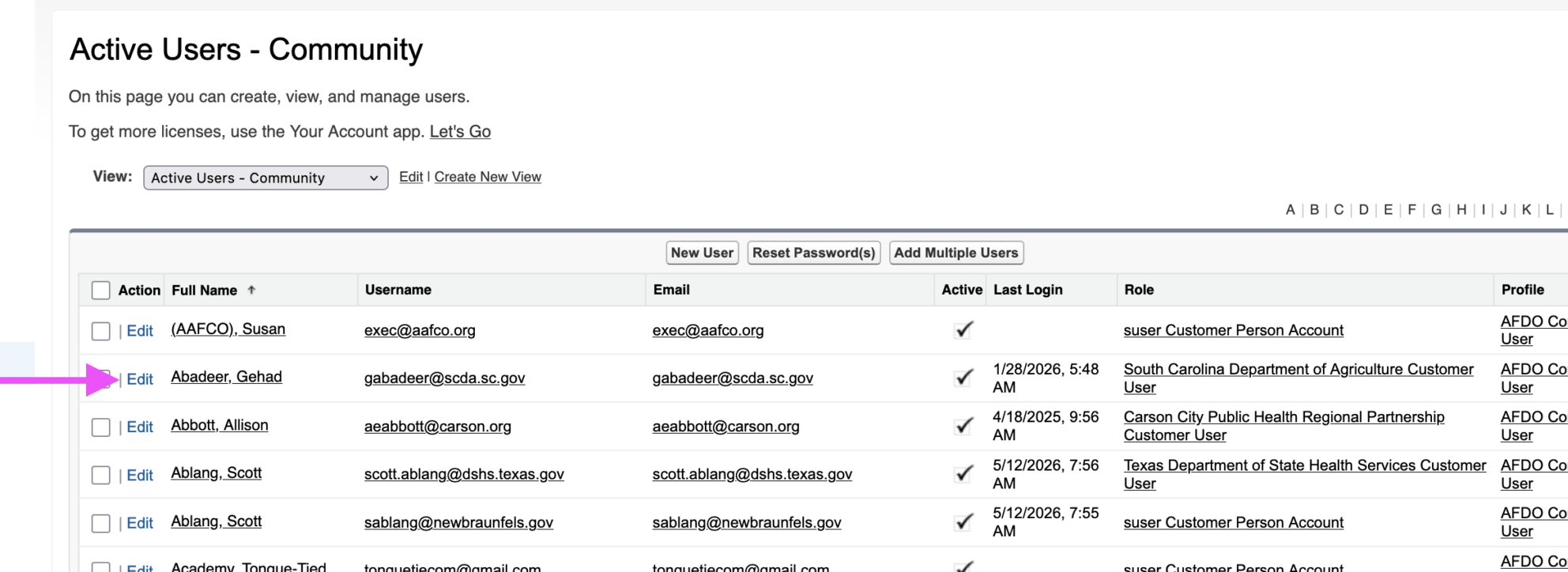
Find the user account, click the EDIT link
- In the USERS page you will see a table of all the active users.
- FIND the name of the person who needs their password reset.
- Click on the EDIT link to the left of their full name.
6
Edit user account
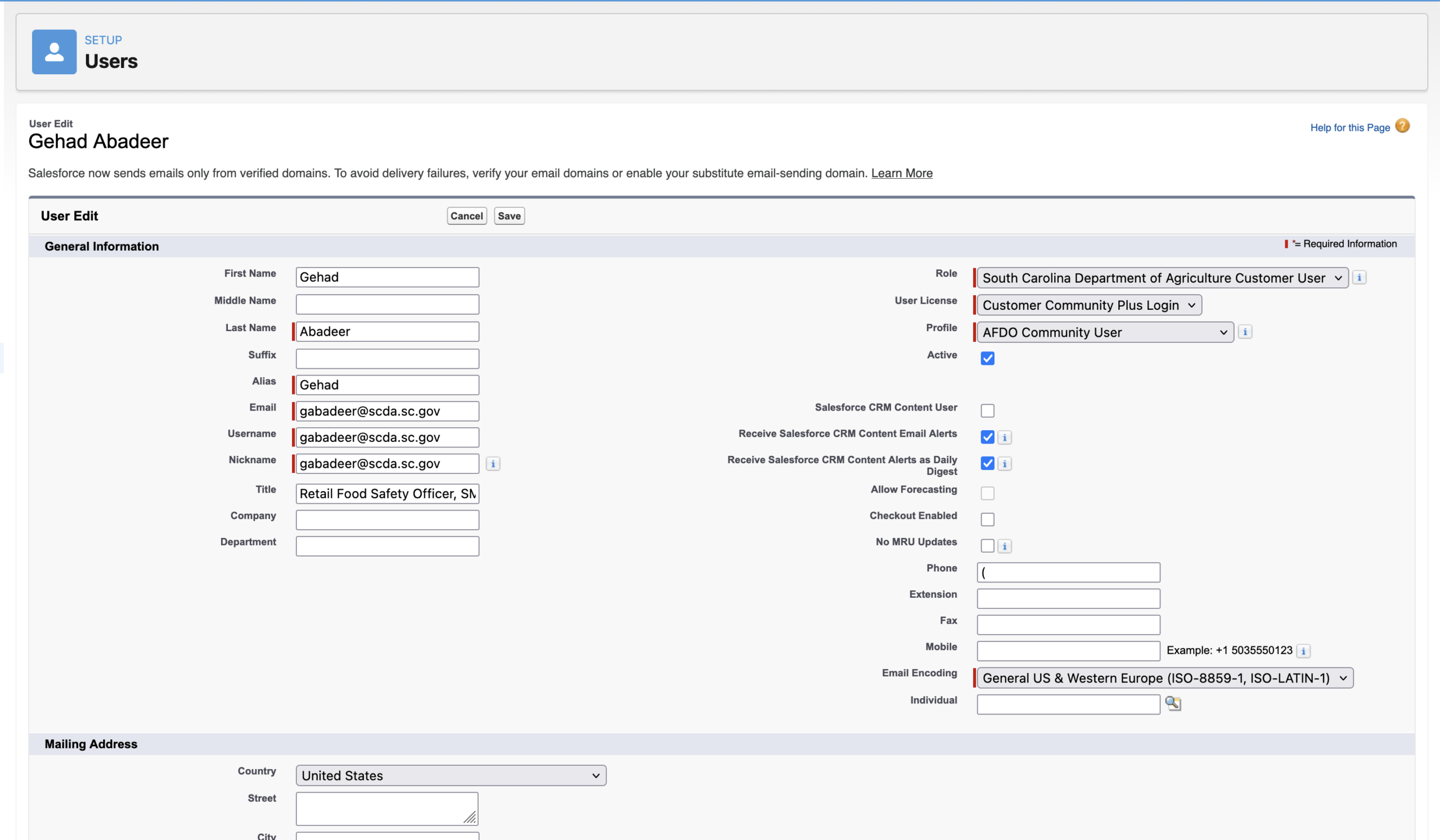
- You will be taken to the user account edit screen
- Find the field(s) you need to edit, and make the needed changes.
- Click the SAVE button.