Follow the directions below to CHANGE a committee’s name in Salesforce.
IMPORTANT: the committee name is stored in 6 different places. If even one place has a different spelling — an extra word, a missing comma, anything — signups for that committee will silently fail. No error appears anywhere. So: never type a committee name by hand. Always copy and paste the same text into every location, and always finish with a test.
TIP: Do this during a low traffic time (early morning / evening) because anyone submitting the form while you are making changes could have their signup fail.
Step-by-Step Instructions
1. Login to Salesforce Admin (admin access required)
Important: Navigate to https://afdo.my.salesforce.com/, then enter your email and password. If you have any trouble logging in, please contact afdo@afdo.org. If you don’t have an admin account, you can request the committee name to be changed by submitting a request here: https://www.afdo.org/ux-request/
2. Determine name of committee, put in in a doc
Once you have determined the new name of the committee, put the new official name in a note or a word doc. Whenever you need to reference the name from now on – ONLY copy and paste from the note to avoid issues!
3. Rename Committee Record in the Salesforce Jotform Integration
→ In the upper right corner of the screen in Salesforce, click the gear icon:
→ Then go to Setup
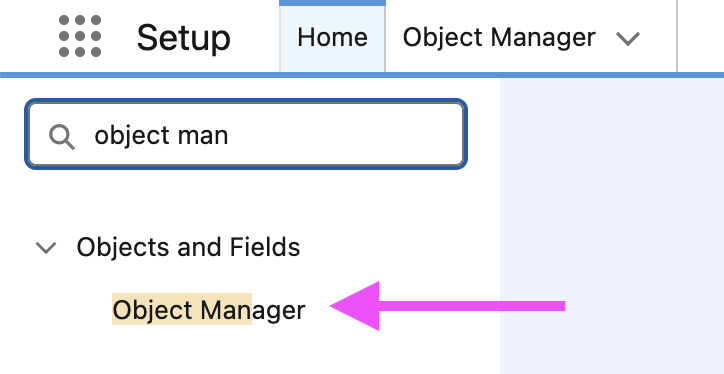
→ Next use the search bar to find Object Manager
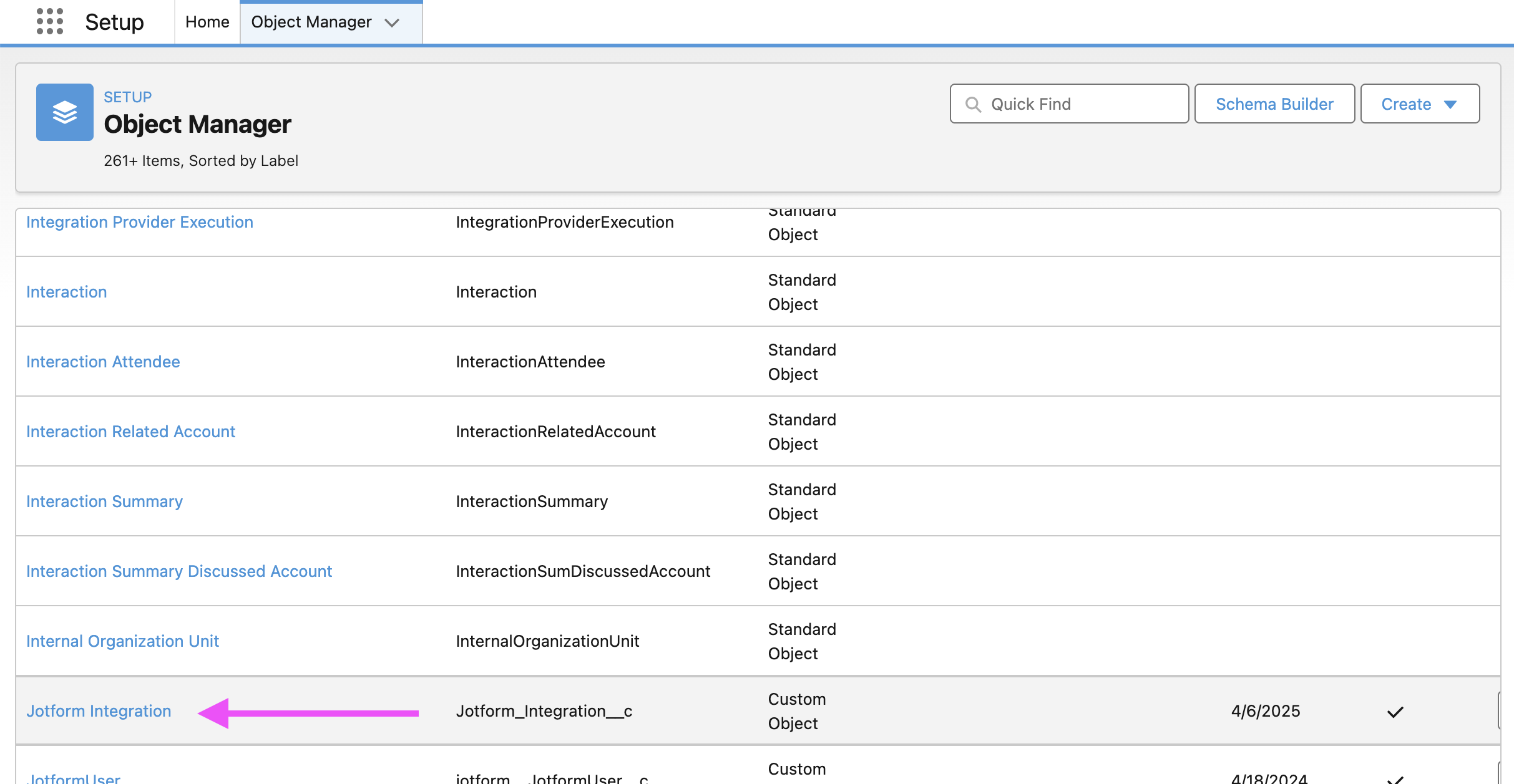
→ After you click on it scroll down the Object Manger page until you find Jotform Integration then click on it
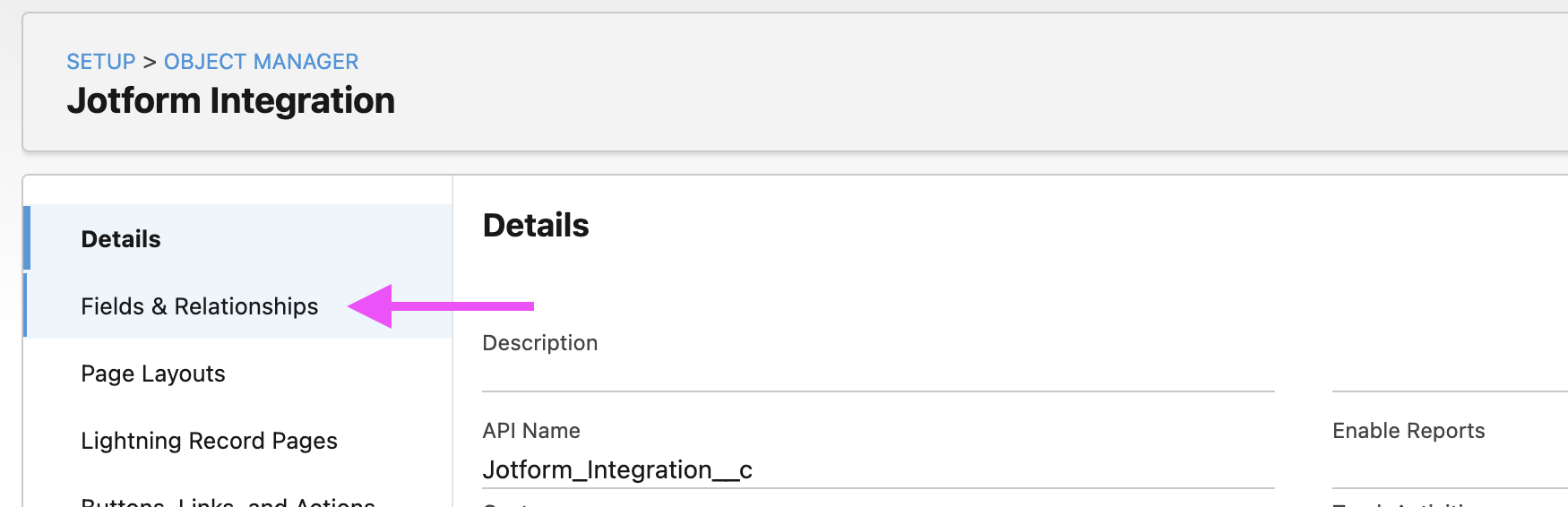
→ Next, find the Fields & Relationships tab and click on it
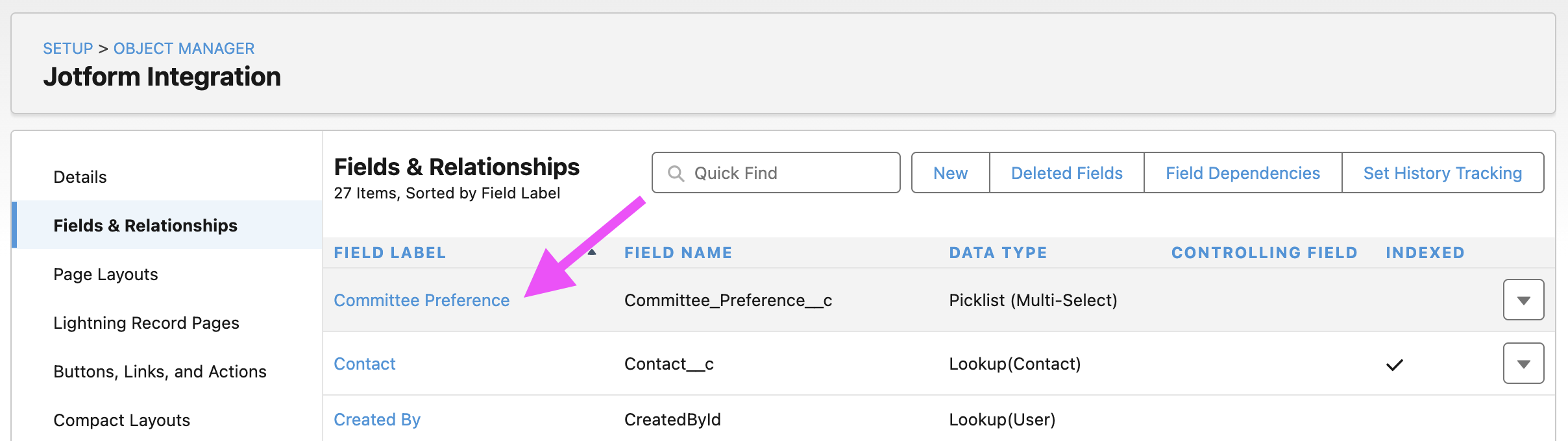
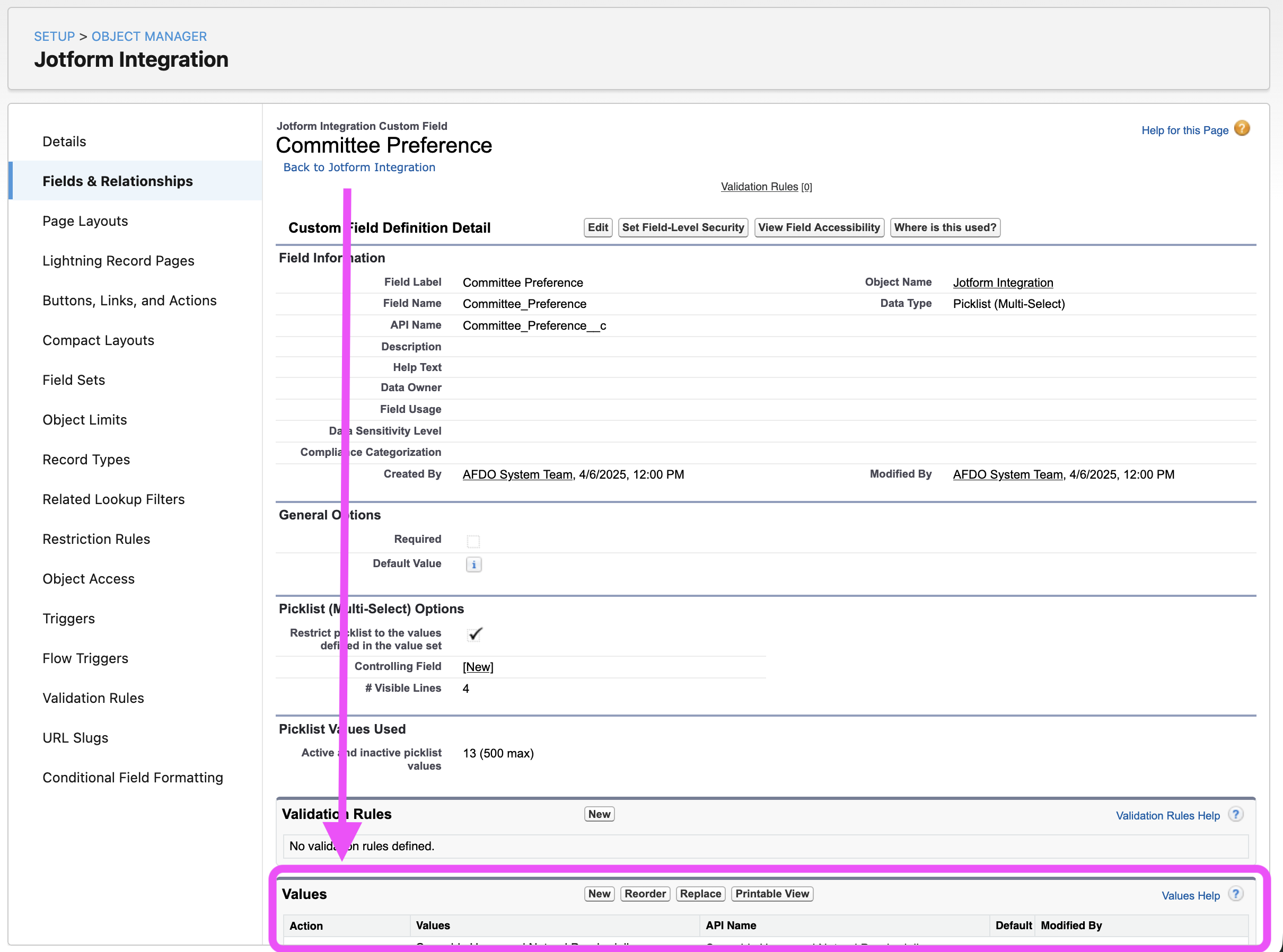
→ Next click on the Committee Preference link
→ On the Committee Preference screen, scroll down to the Values section near the bottom of the page
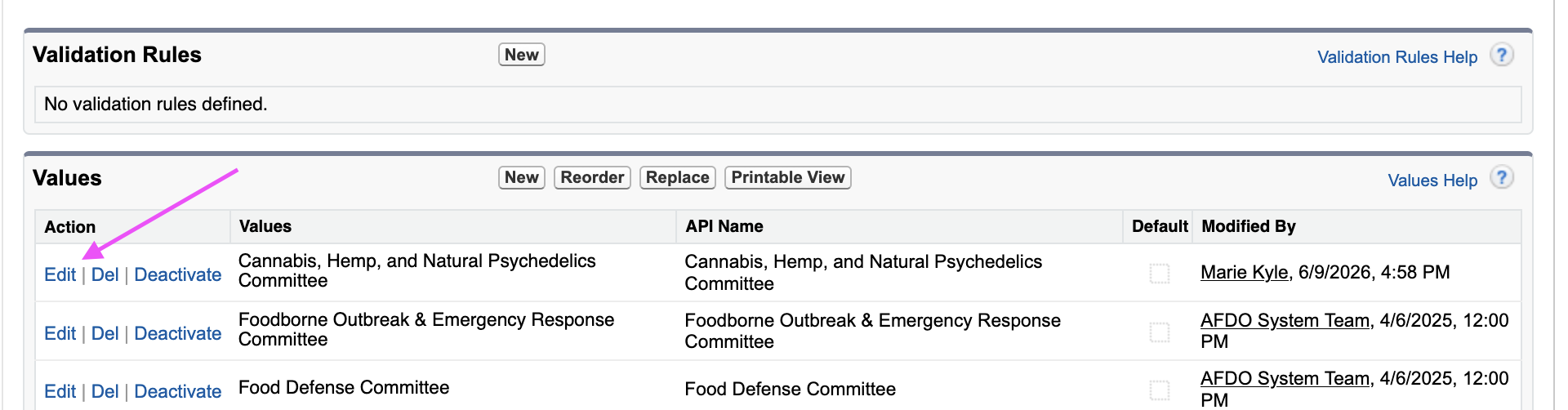
→ In the Values section, find the committee that needs a name change and click Edit next to it
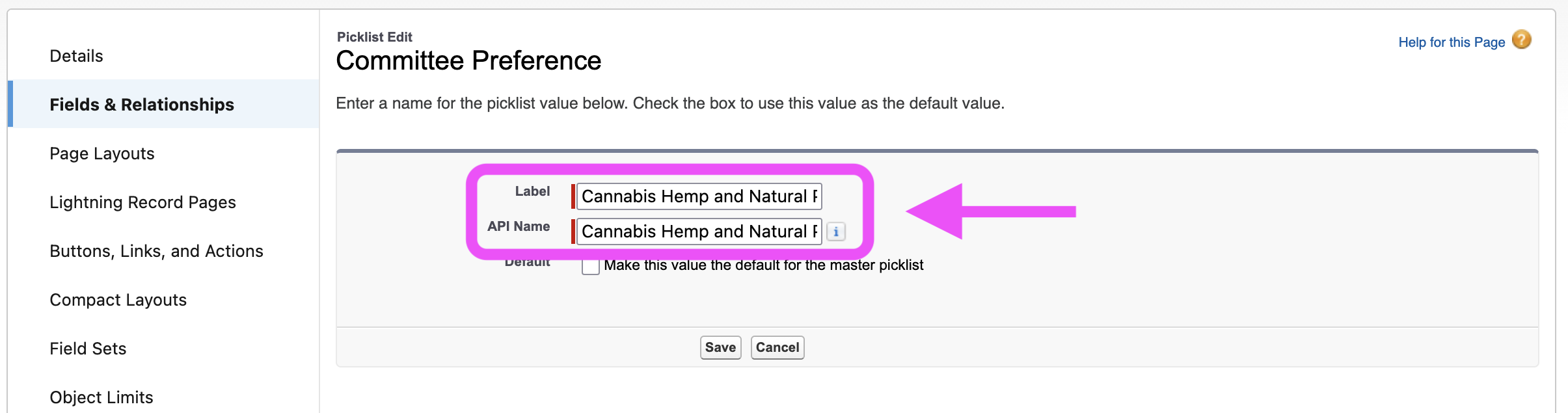
→ On the picklist edit screen, you’ll see TWO boxes (the display name and a second “API Name” box). Paste the new name from step 2 into both fields, then click save. Salesforce may show a warning — click through it; this is expected.
4. Rename Committee Record in Salesforce Contact
→ Go back to Setup > Object Manger
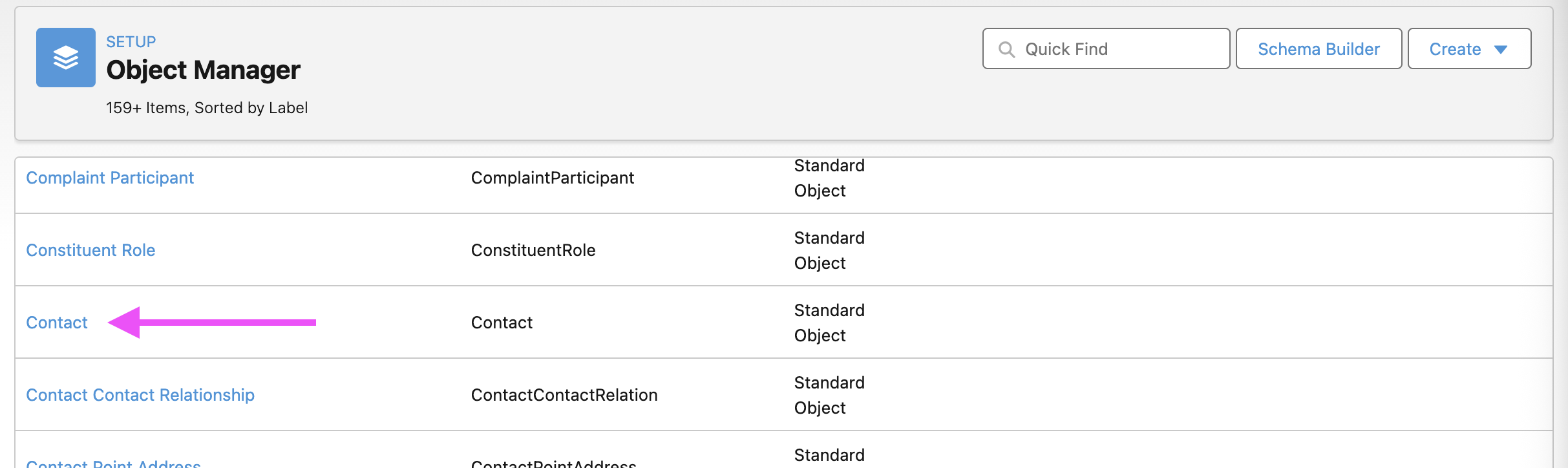
→ On the Object Manager screen, scroll down until you find Contact then click on it
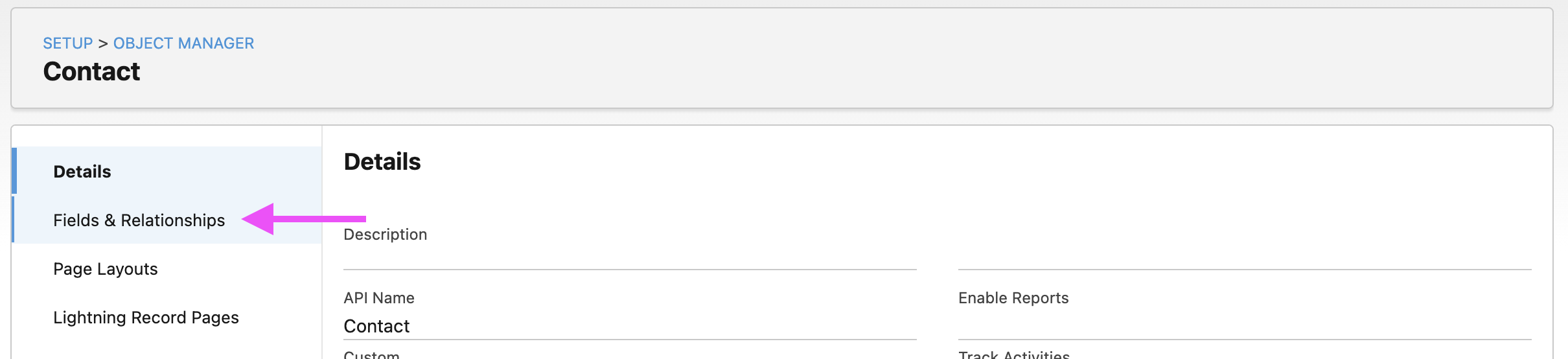
→ Next, find the Fields & Relationships tab and click on it
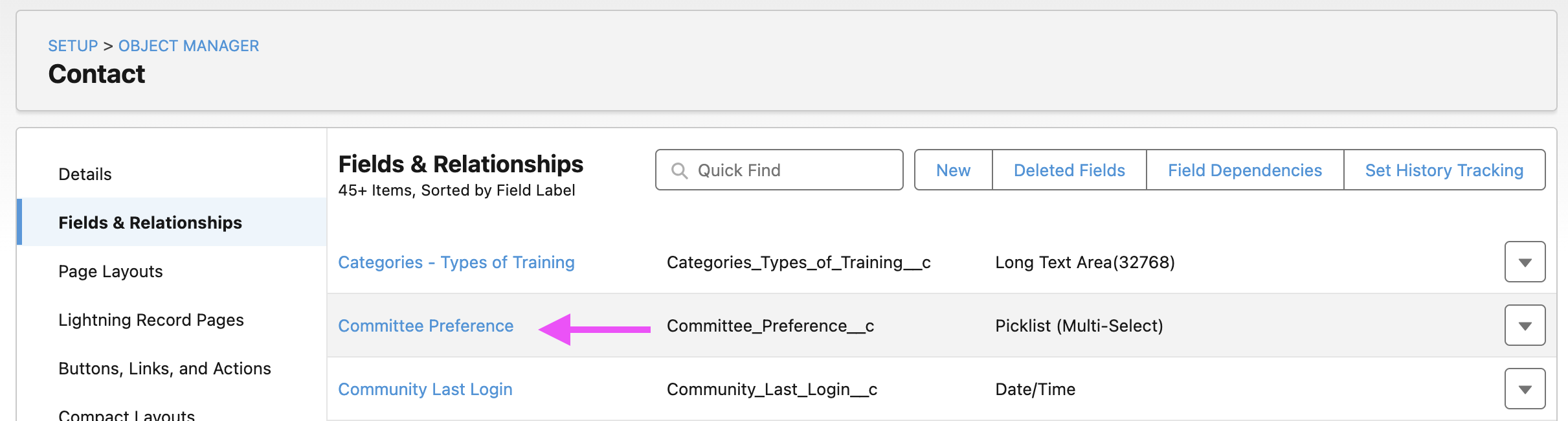
→ Next click on the Committee Preference link
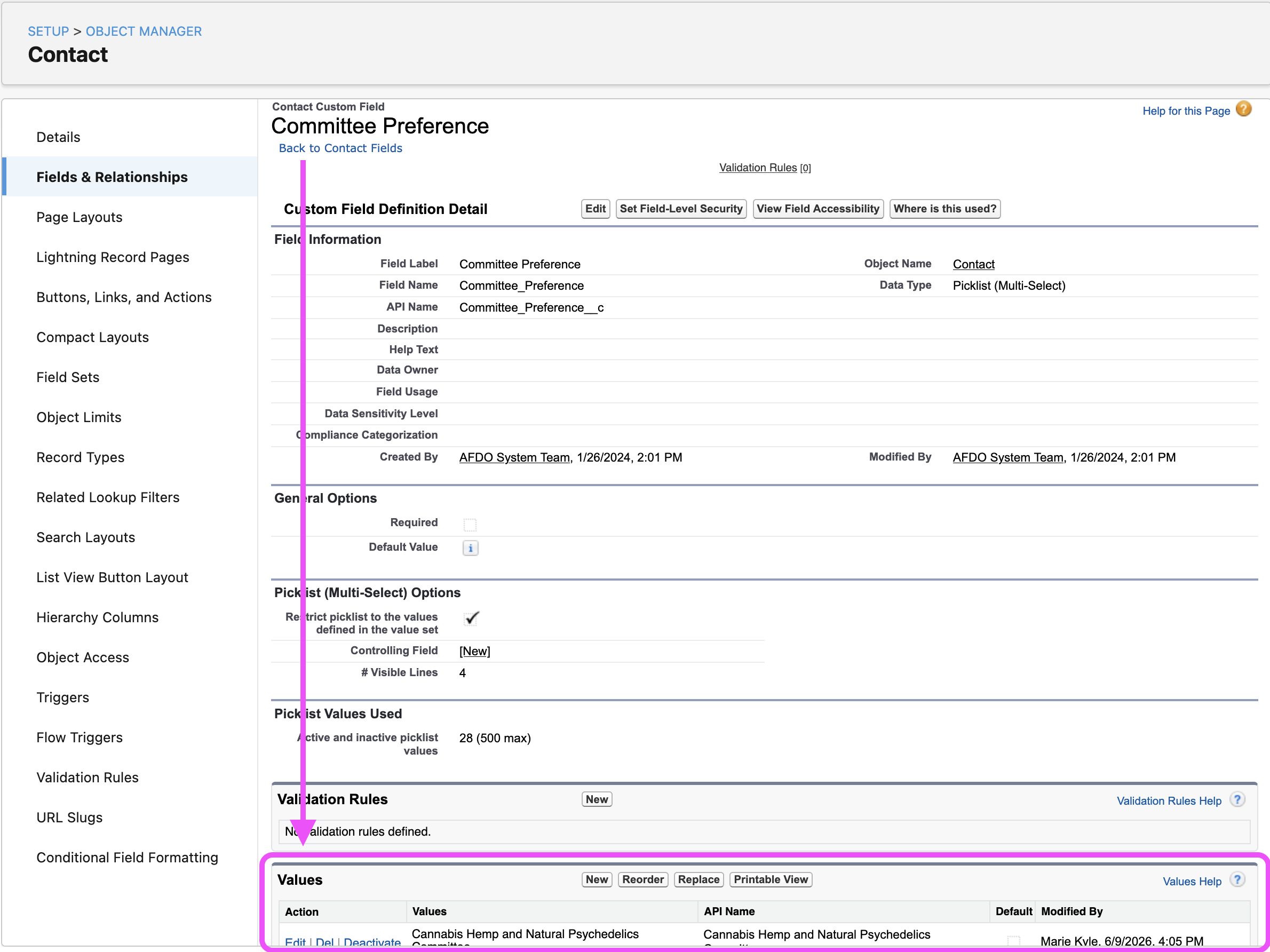
→ On the Committee Preference screen, scroll down to the Values section near the bottom of the page
→ In the Values section, find the committee that needs a name change and click Edit next to it
→ On the picklist edit screen, you’ll see TWO boxes (the display name and a second “API Name” box). Paste the new name from step 2 into both fields, then click save. Salesforce may show a warning — click through it; this is expected.
5. Navigate to JotForm Dashboard
You can access jotform in 2 ways:
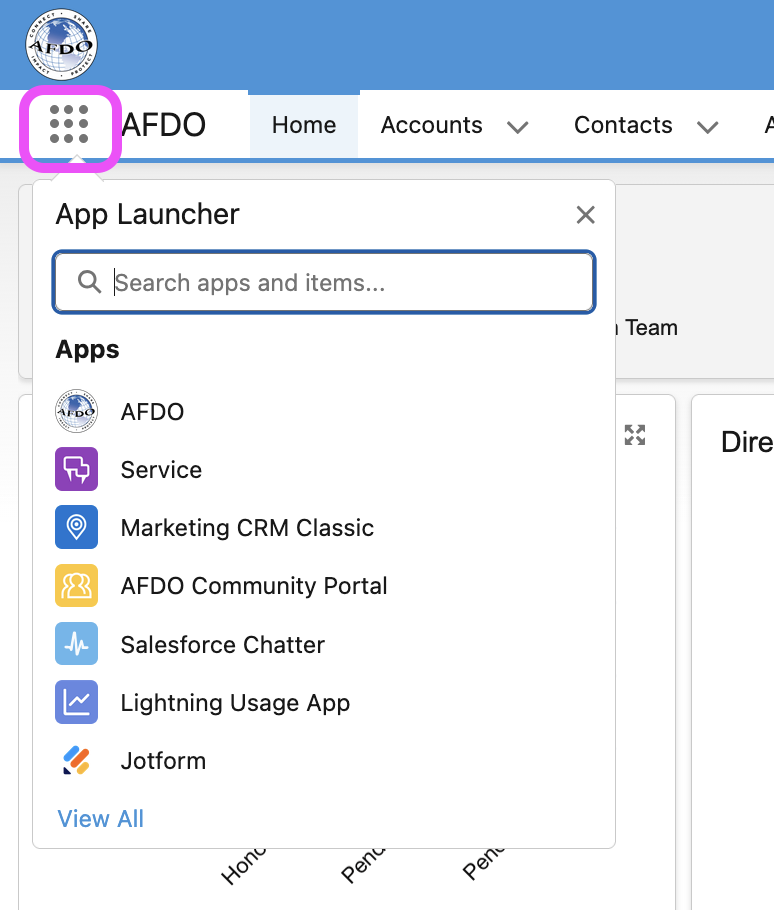
Navigate to the 9 dot icon in the upper left corner of any salesforce admin screen, then click on Jotform
If for some reason you cannot access it due to a login or browser issue, just navigate to https://www.jotform.com/workspace/. For login credentials, contact afdo@afdo.org
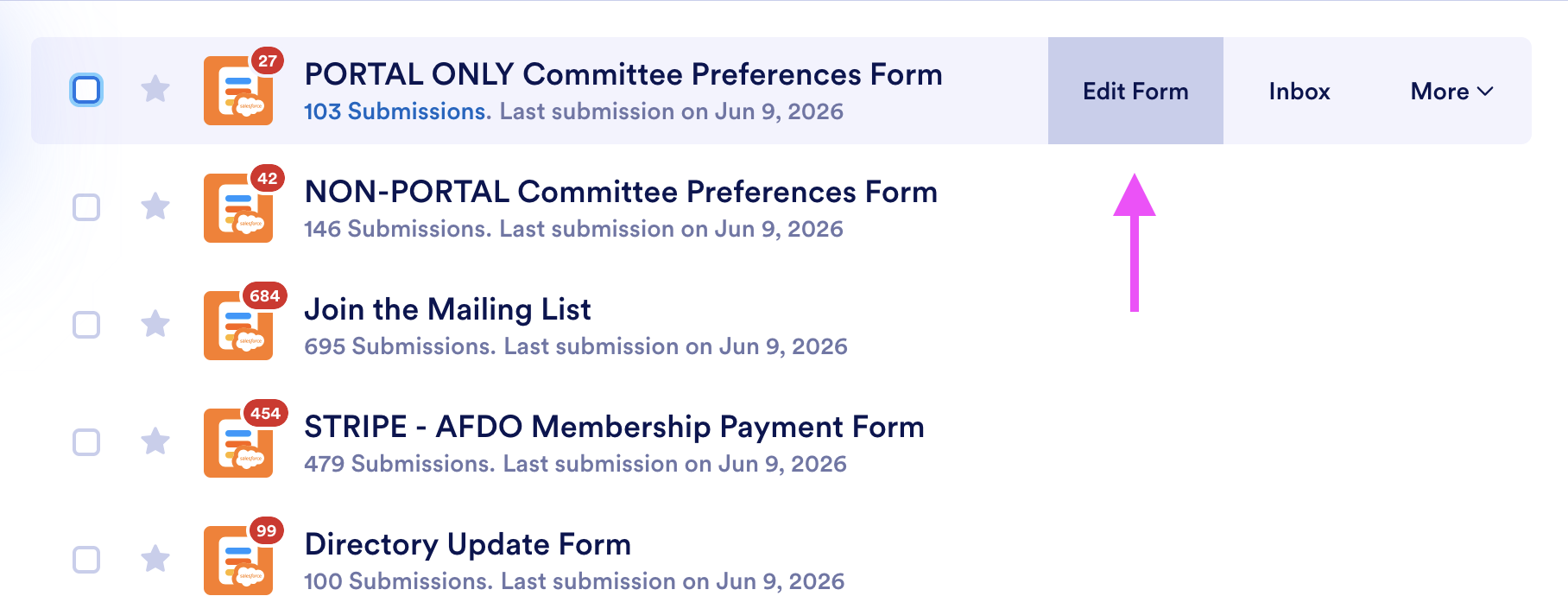
6. Update JotForm PORTAL ONLY Committee Preferences Form
→ On the jotform dashboard, hover over the form name and click “Edit Form”
→ You will be taken to the build tab
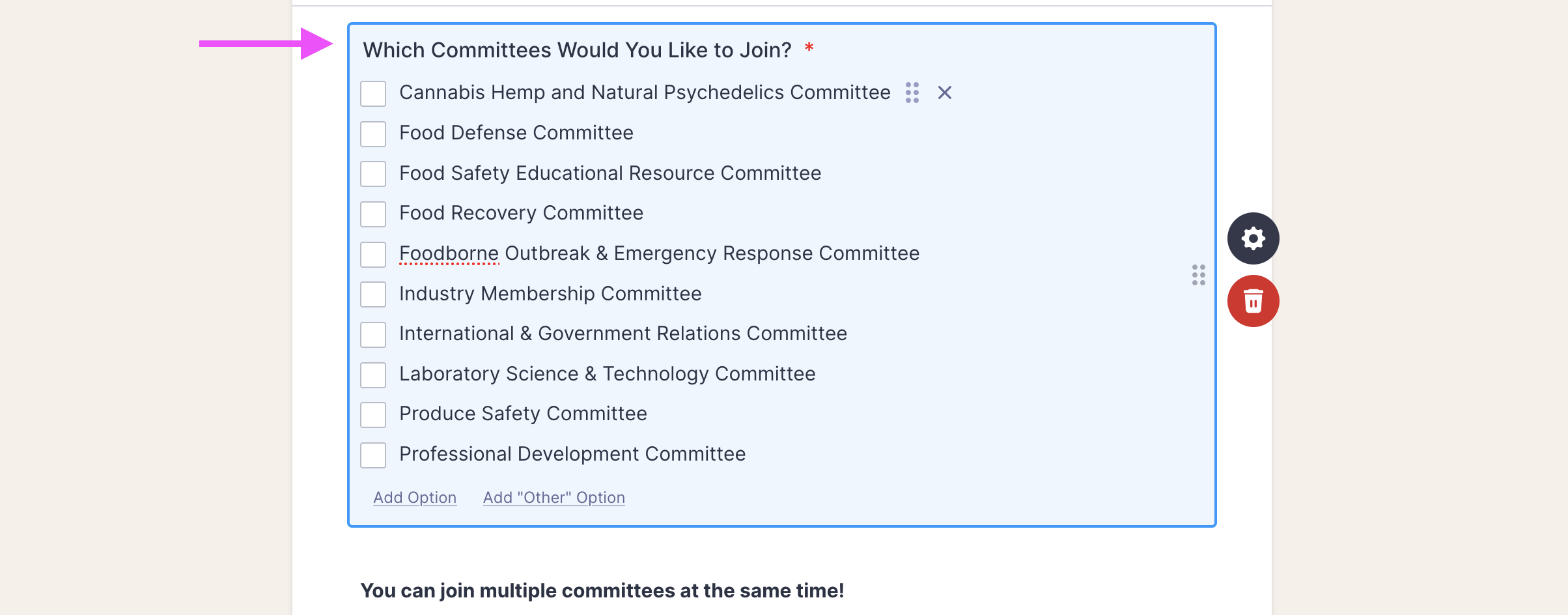
→ Next scroll down to the “Which Committees Would You Like to Join?” field. Select the committee name you need to update, paste in the new name from step 2. Once you are done editing the field name, the form will auto save.
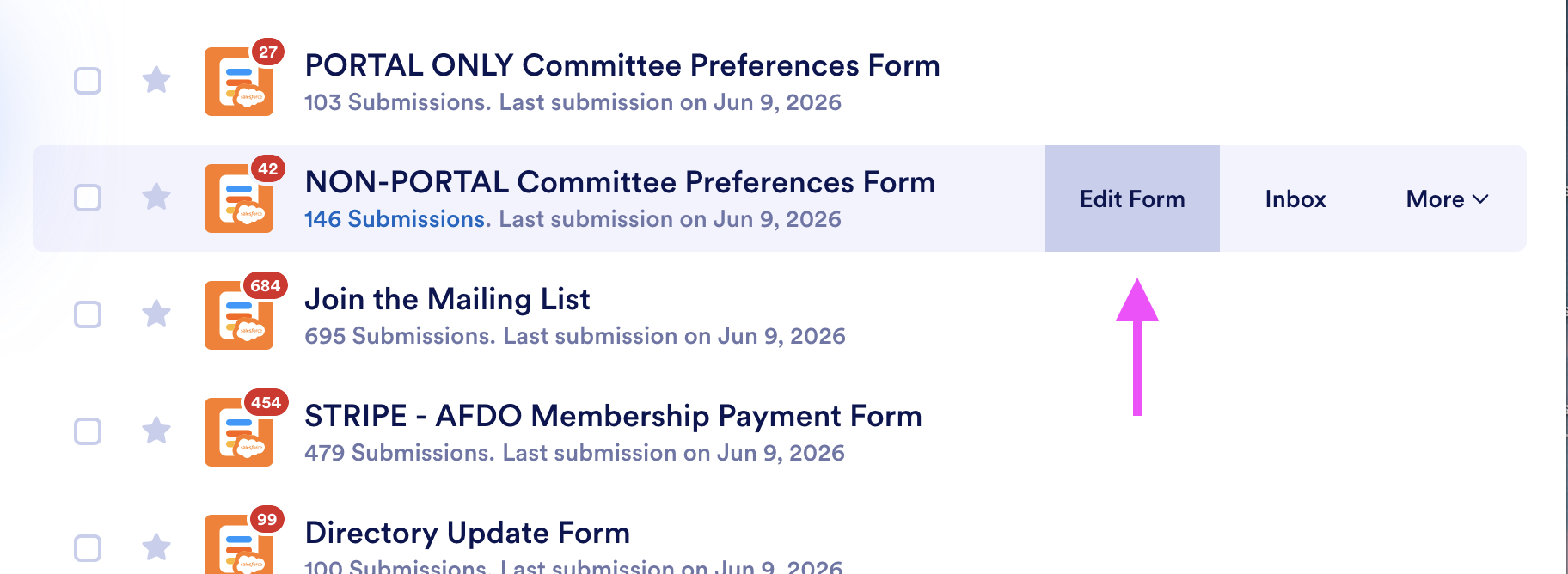
7. Update JotForm NON-PORTAL Committee Preferences Form
→ On the jotform dashboard, hover over the form name and click “Edit Form”
→ You will be taken to the build tab
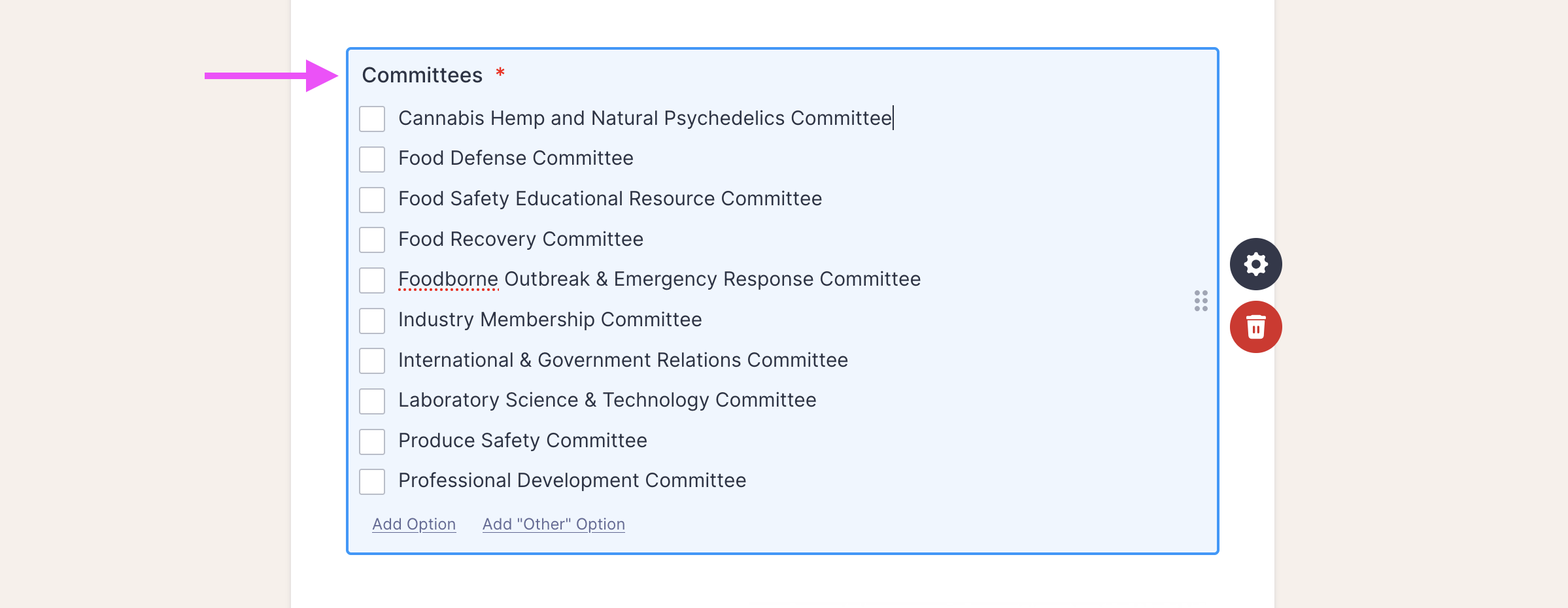
→ Next scroll down to the “Committees” field. Select the committee name you need to update, paste in the new name from step 2. Once you are done editing the field name, the form will auto save.
* For the Portal Only form – you will need a salesforce community account. If you do not have one, please to submit a request here to have one setup for you: https://www.afdo.org/ux-request/