(Video: 1 min)
Step-by-Step Instructions
1. Login to WordPress (admin access required)
Important: Navigate to afdo.org/staff-login, then enter your email and password. If you have any trouble logging in, please contact afdo@afdo.org.
2. Navigate to page with the formatting issue
On the front end of the site (afdo.org/resources) – navigate to the page that contains the formatting issue
3. Open resources page editor
On the front facing page, select the “Edit Resource” link in the admin bar at the top of the screen
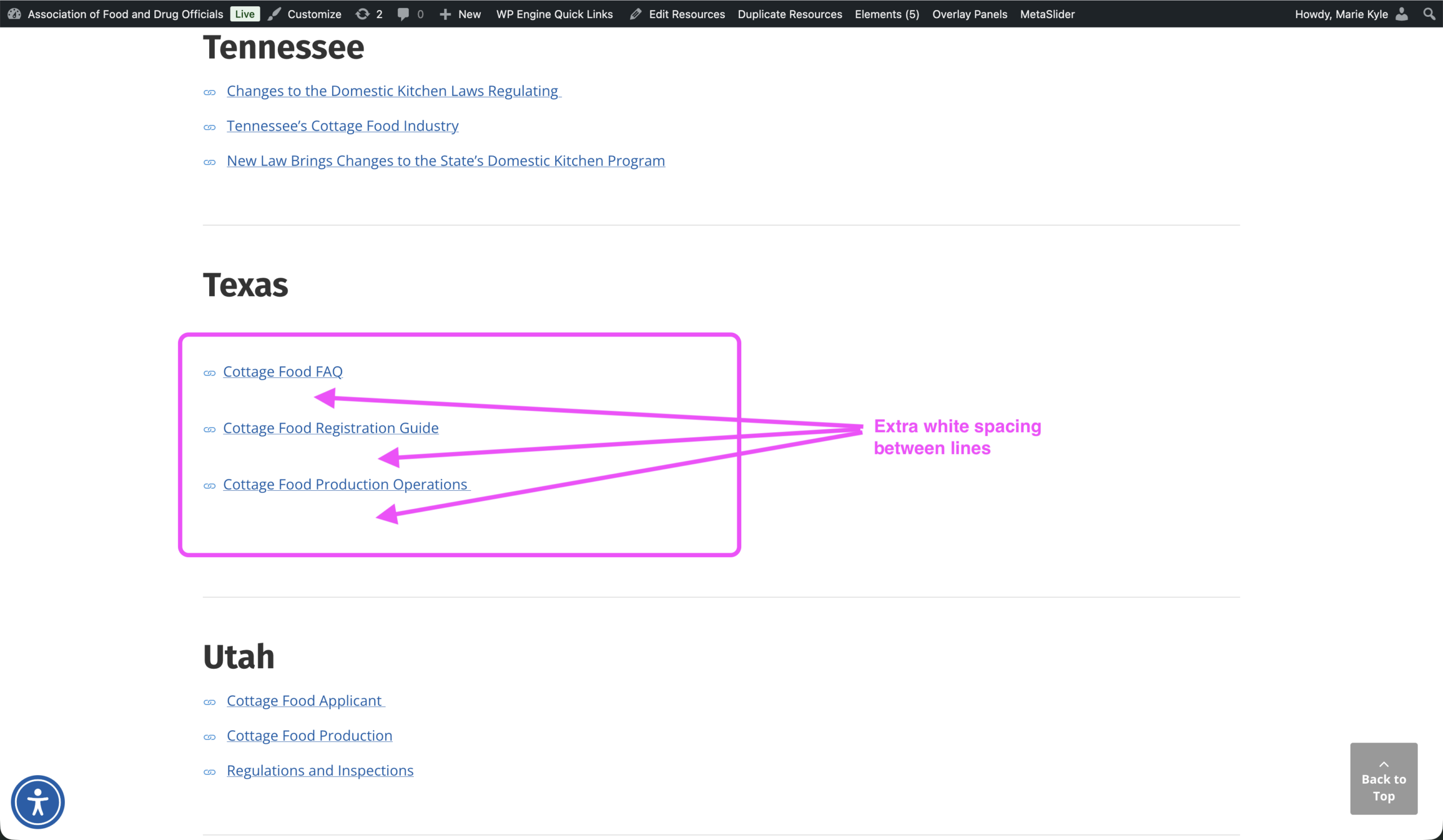
4. Find section with formatting use
Scroll down to the section with a list that contains formatting issues
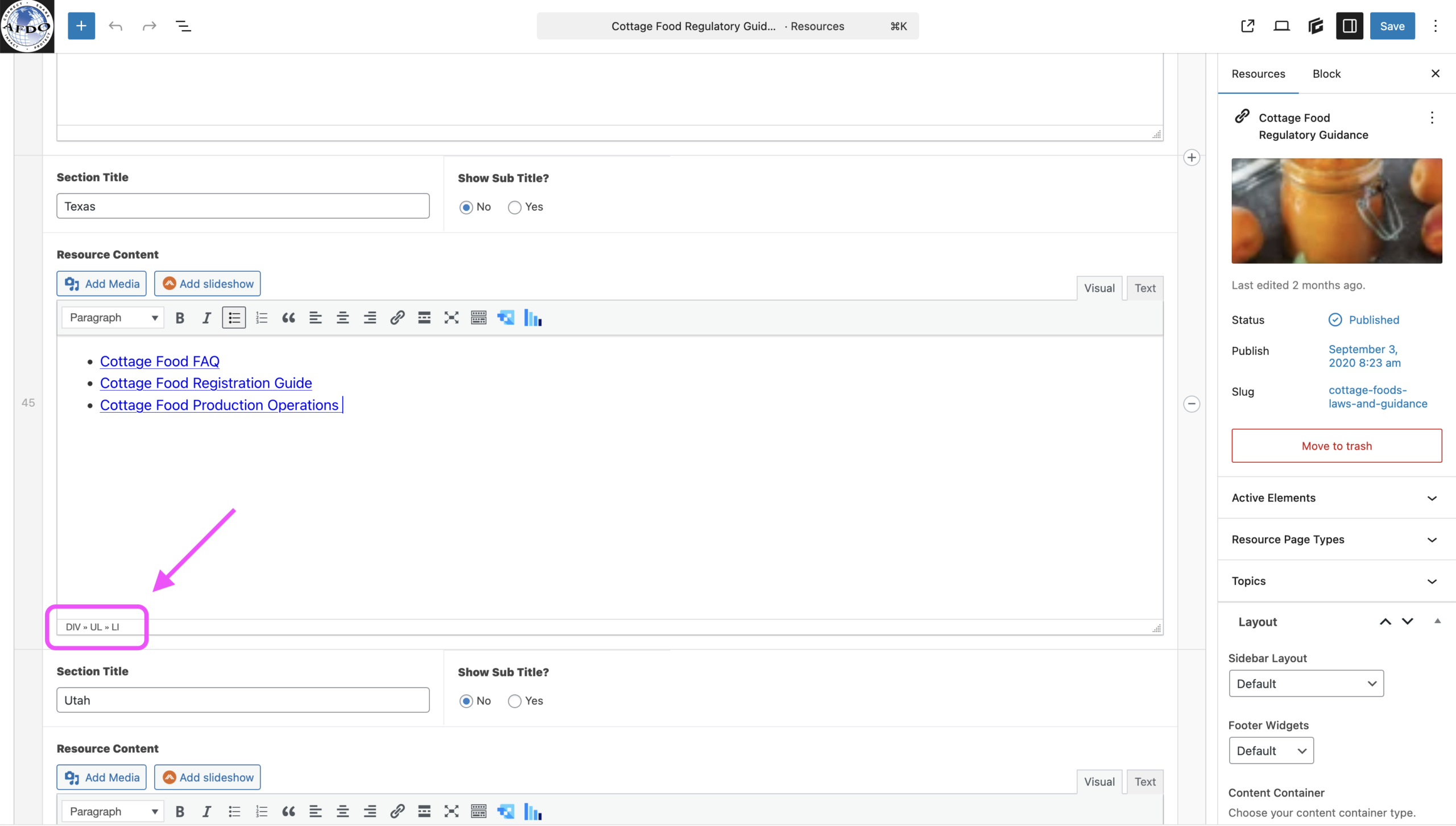
To verify if a list contains formatting issues: click anywhere on a list, then look at the HTML labels that appear at the bottom of the text editor. If the first item you see is ‘DIV’, then there is a formatting issue.
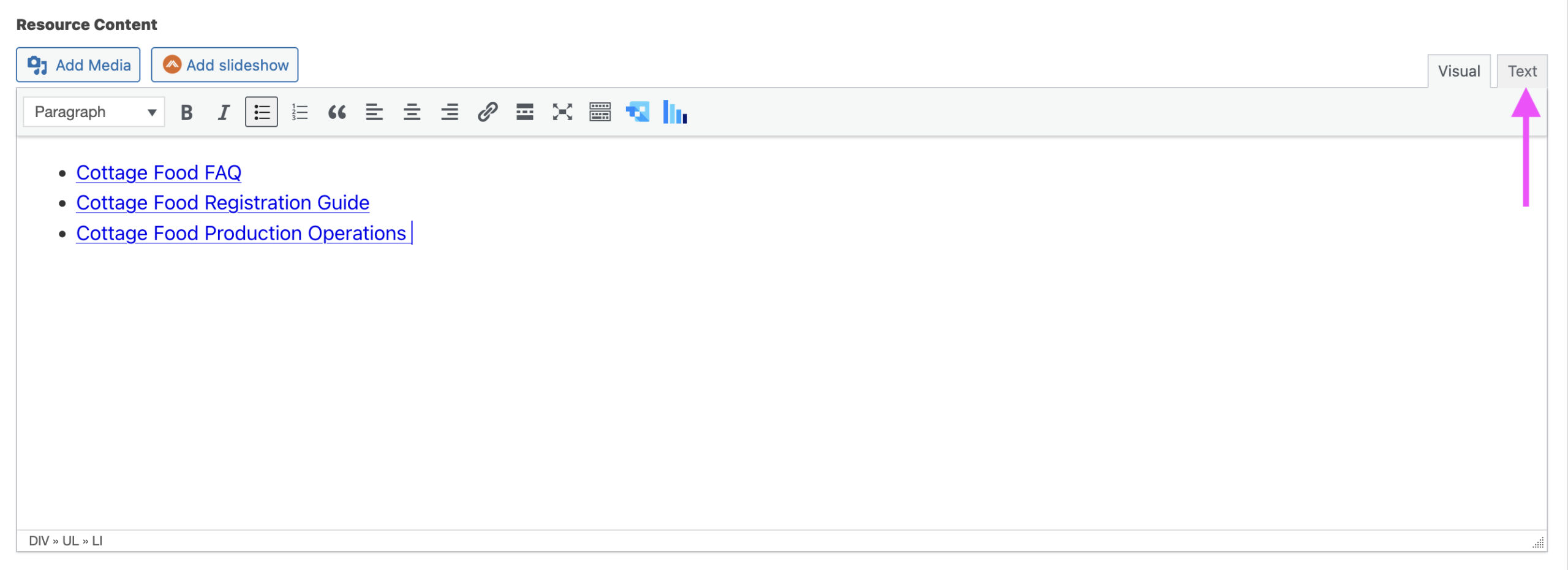
5. Switch to text tab
Each text editor has 2 tabs in the upper right corner. Click on the ‘Text’ tab.
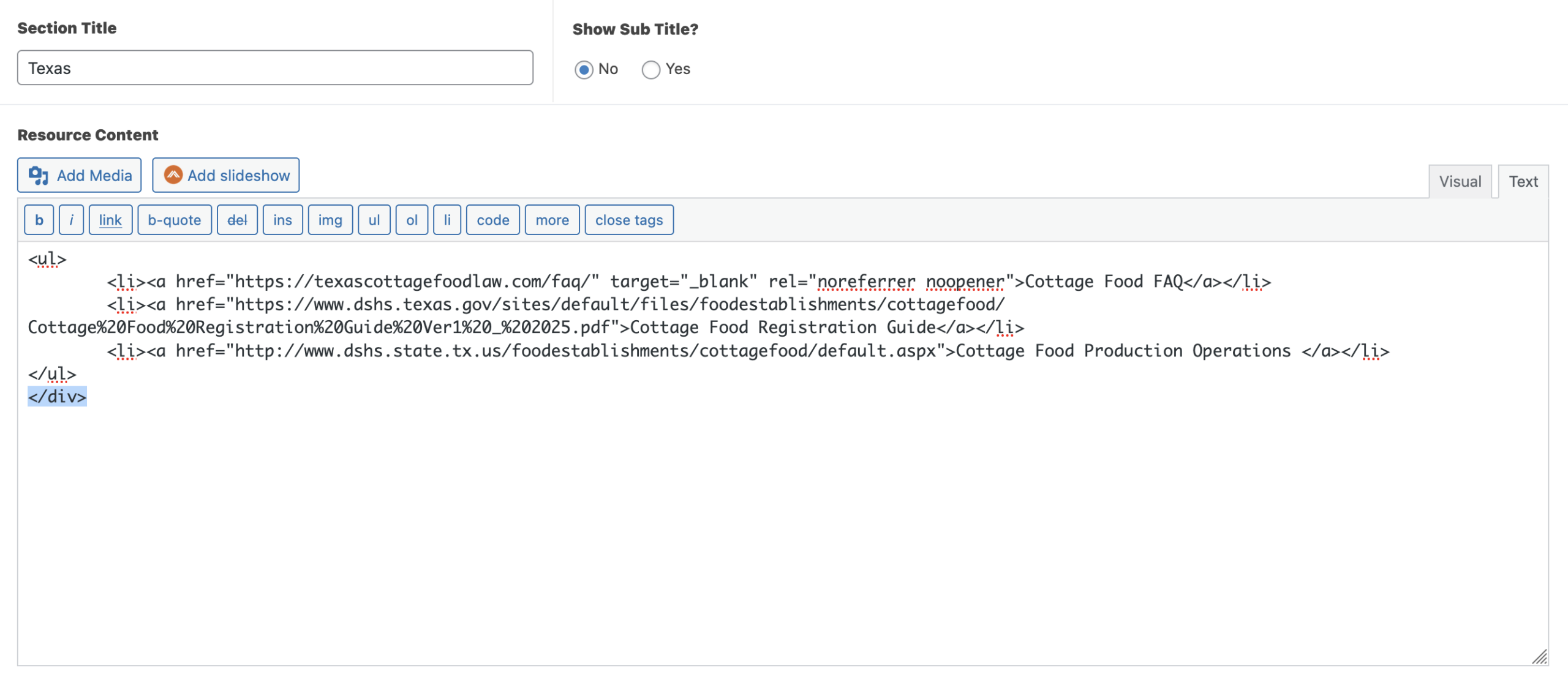
6. Remove extra tags
- In the text editor, delete the entire first line that starts with <div…
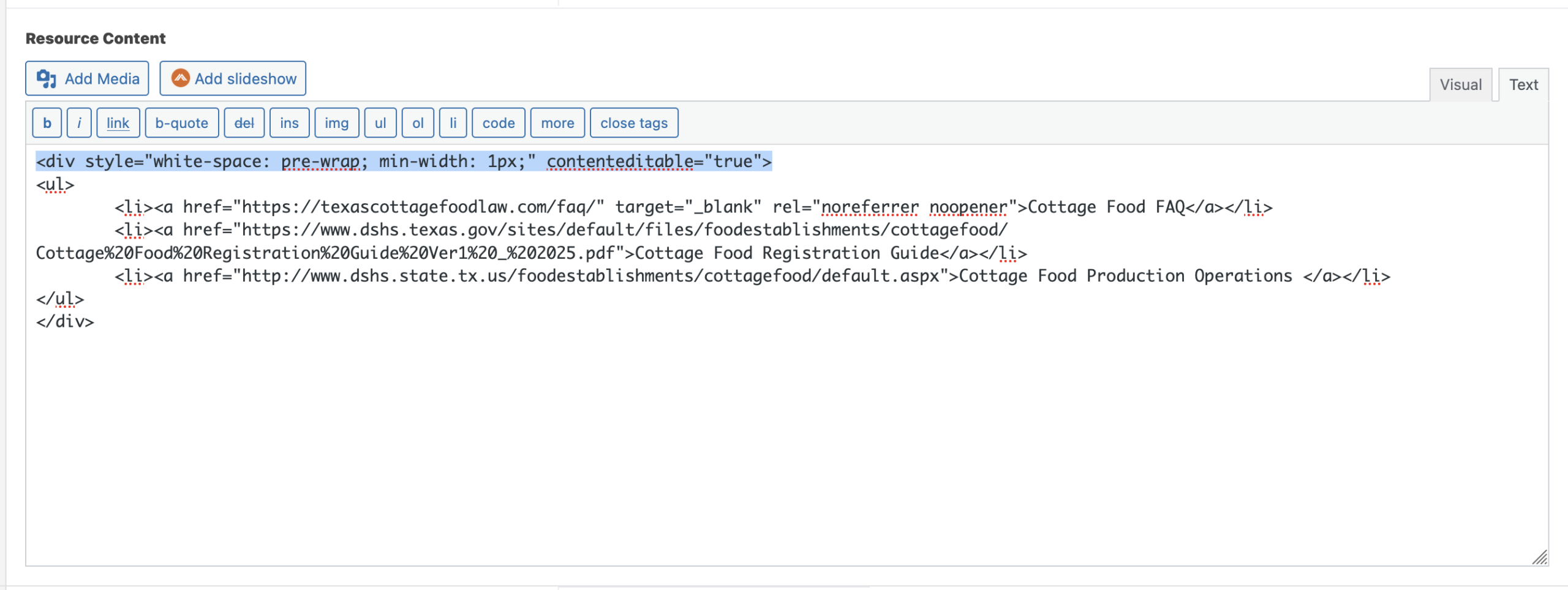
- Next delete the last line that contains <div>
7. Switch back to visual tab
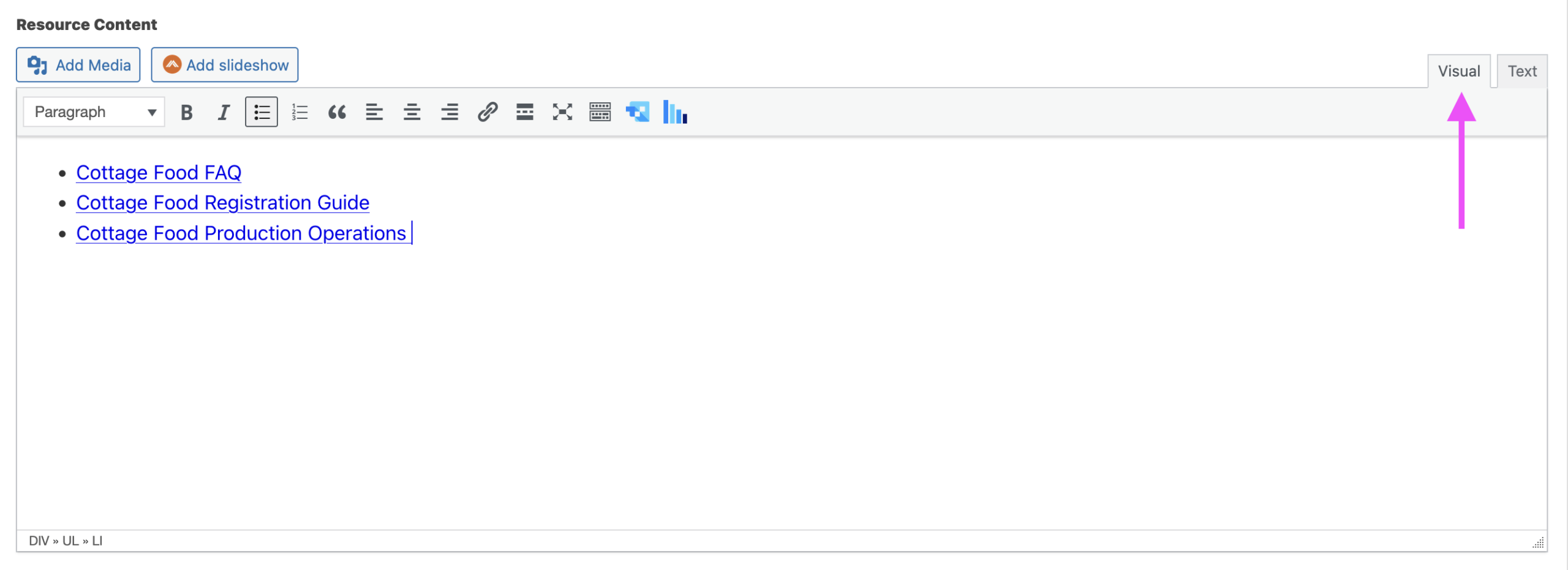
In the upper right corner of the text editor, switch back to the “Visual” tab
8. Save changes
At the top of the page editor, you sill see a “save” button in the corner. Click on it to save your changes.

9. Verify edit on the front facing page
Navigate to the live, front facing page to verify that your changes were saved.