1
Login to wordpress (admin access required)
- Navigate to afdo.org/staff-login and log in with your WordPress account
- The audit tool only works while you are logged in — if you see a “You must be logged in” message on the tool page, log in first and reload
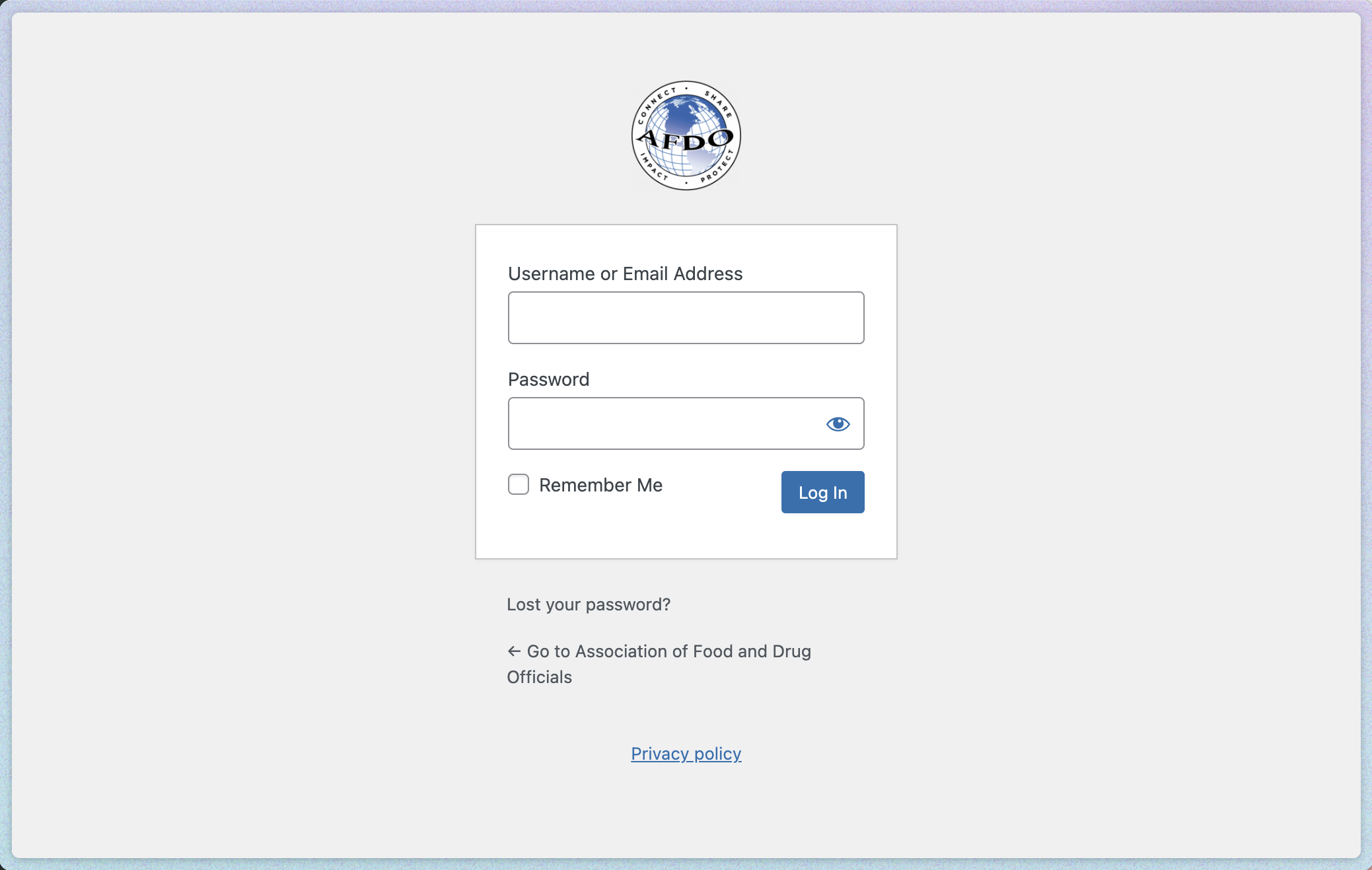
Any staff member with a WordPress login can run this tool. No special permissions are needed.
2
Open the audit tool
- Navigate to the tool page: https://www.afdo.org/az-contributor-audit/
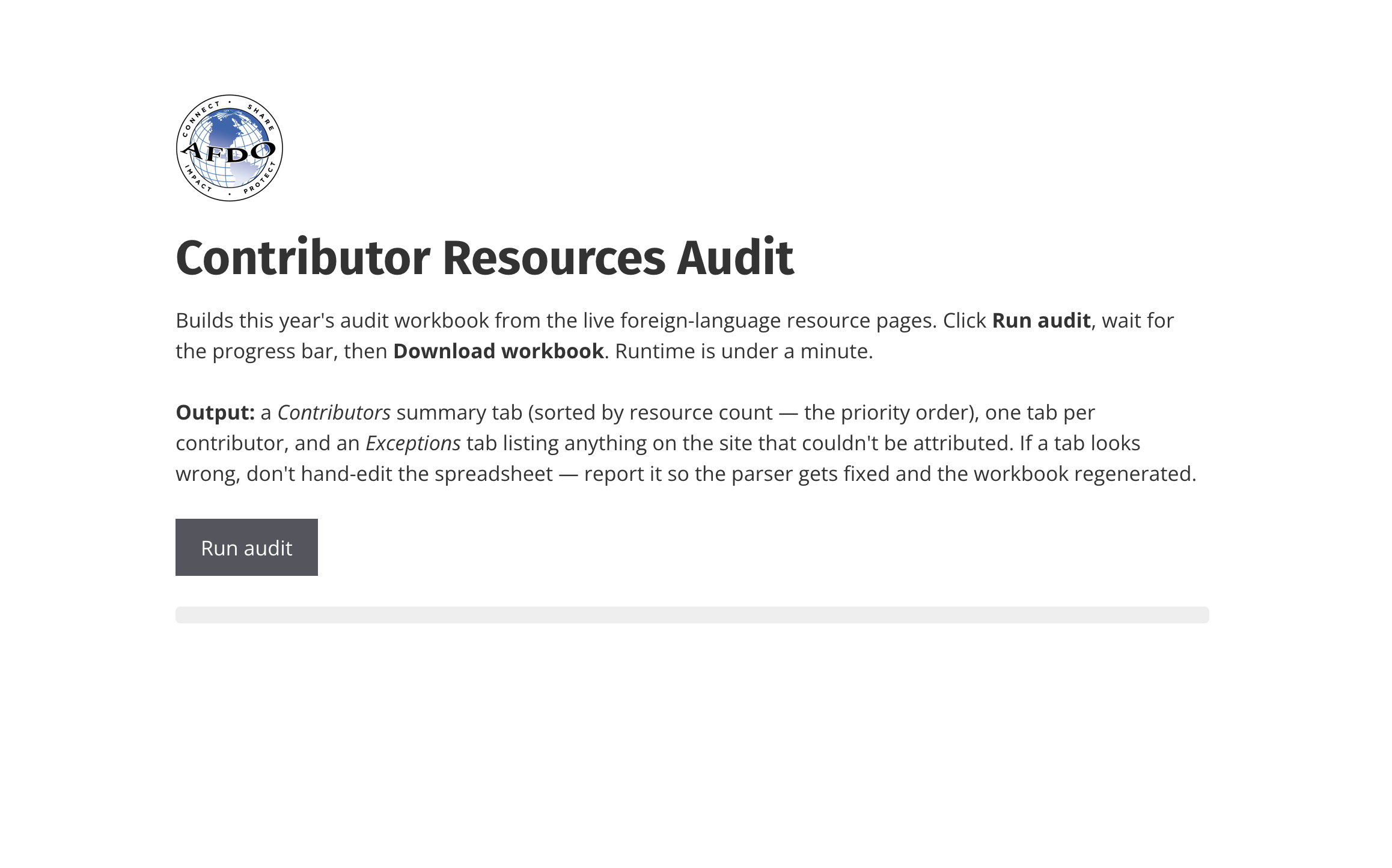
Tool page at rest — “Run audit” button visible
3
Run the audit
- Click Run audit
- A progress bar will appear and count through the resource pages (e.g. “20 / 59 pages — Parsing: Haitian French-Translated Food Safety Documents”)
- The run takes under a minute. Stay on the page until it says Parse complete
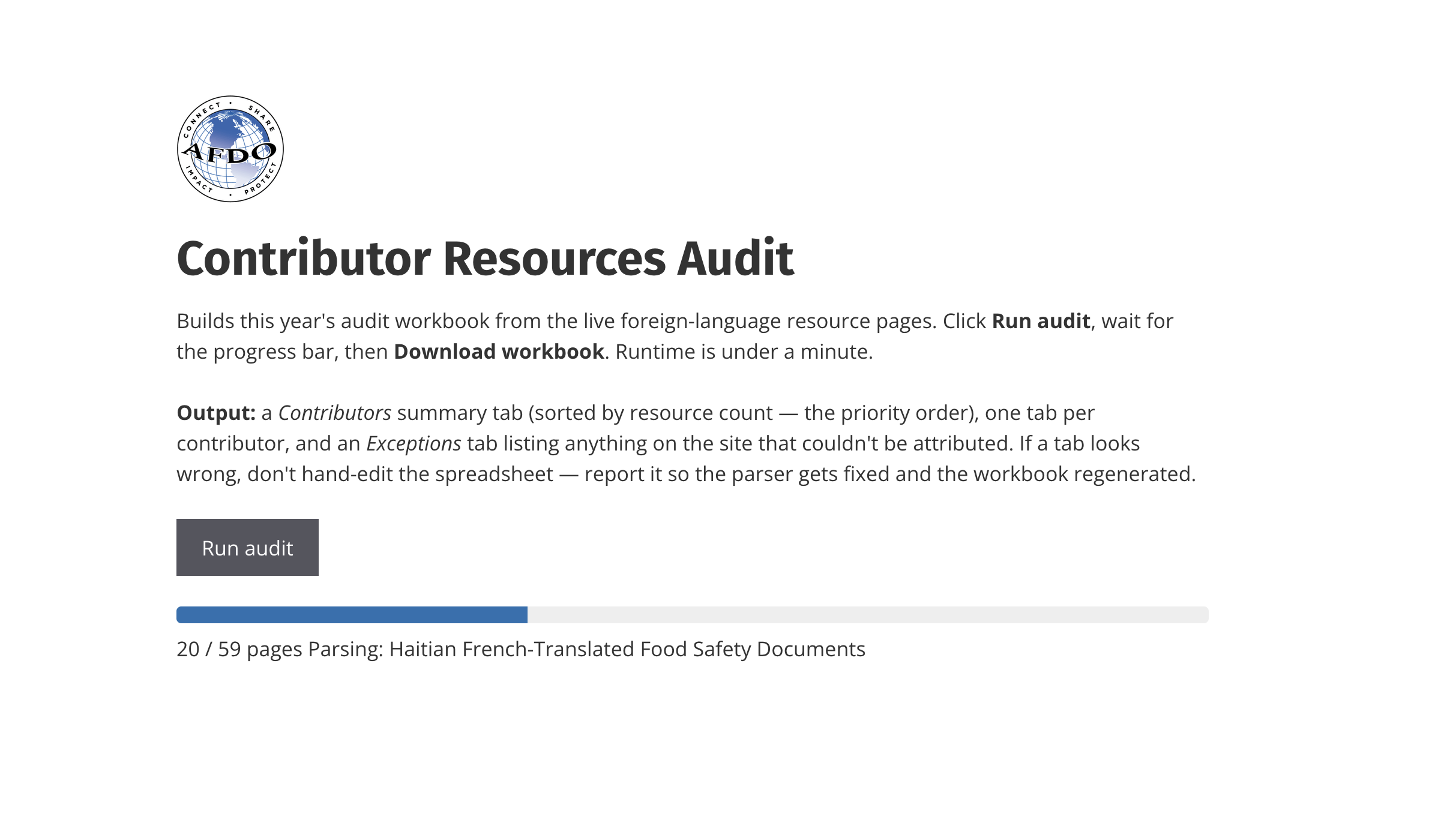
progress bar mid-run
- When the run finishes, a summary line appears showing totals, for example: 2962 resources · 83 contributors · 3 exceptions
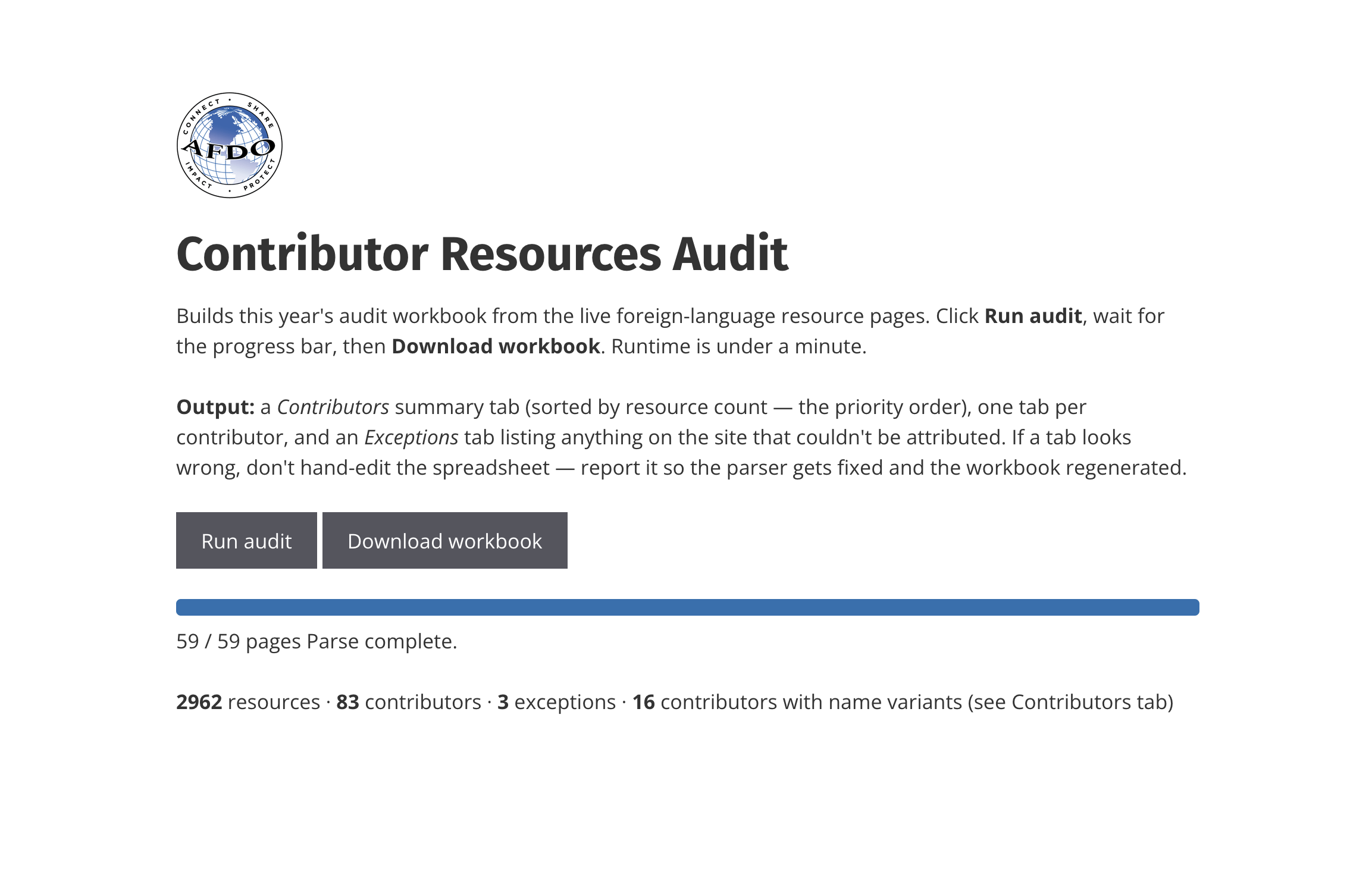
completed run with summary line and Download workbook button
4
Download the workbook
- Click Download workbook
- An Excel file downloads to your device, named with today’s date (e.g.
20260811_afdo-contributor-audit.xlsx)
The numbers in the workbook always reflect the live website at the moment you ran the audit — there is no stored copy to go stale. If the website changes, just run it again.
5
What’s in the workbook
The workbook has three kinds of tabs, in this order:
- Exceptions (first tab) — anything on the site the tool could not attribute to a contributor, with the page, section, and reason. Check this tab first. An empty Exceptions tab means everything on the site parsed cleanly. Entries here are usually findings about the website itself (for example, a resource with no Point of Contact link, or a resource page that is empty on the live site).
- Contributors — the master list. One row per contributing agency, sorted by resource count (highest first — this is the assignment priority order). Includes each agency’s Point of Contact link (clickable), resource count, which pages and topic sections their materials appear on, and columns flagging any name or link inconsistencies found on the site. The Contact Email and Contact Phone columns are intentionally blank — that information is not on the website and is filled in by the committee.
- One tab per agency — everything that agency currently contributes. Each row is one resource with its topic section, source page, and an “open page ↗“ link that jumps directly to that page on afdo.org. The agency’s Point of Contact link is at the top of every tab.
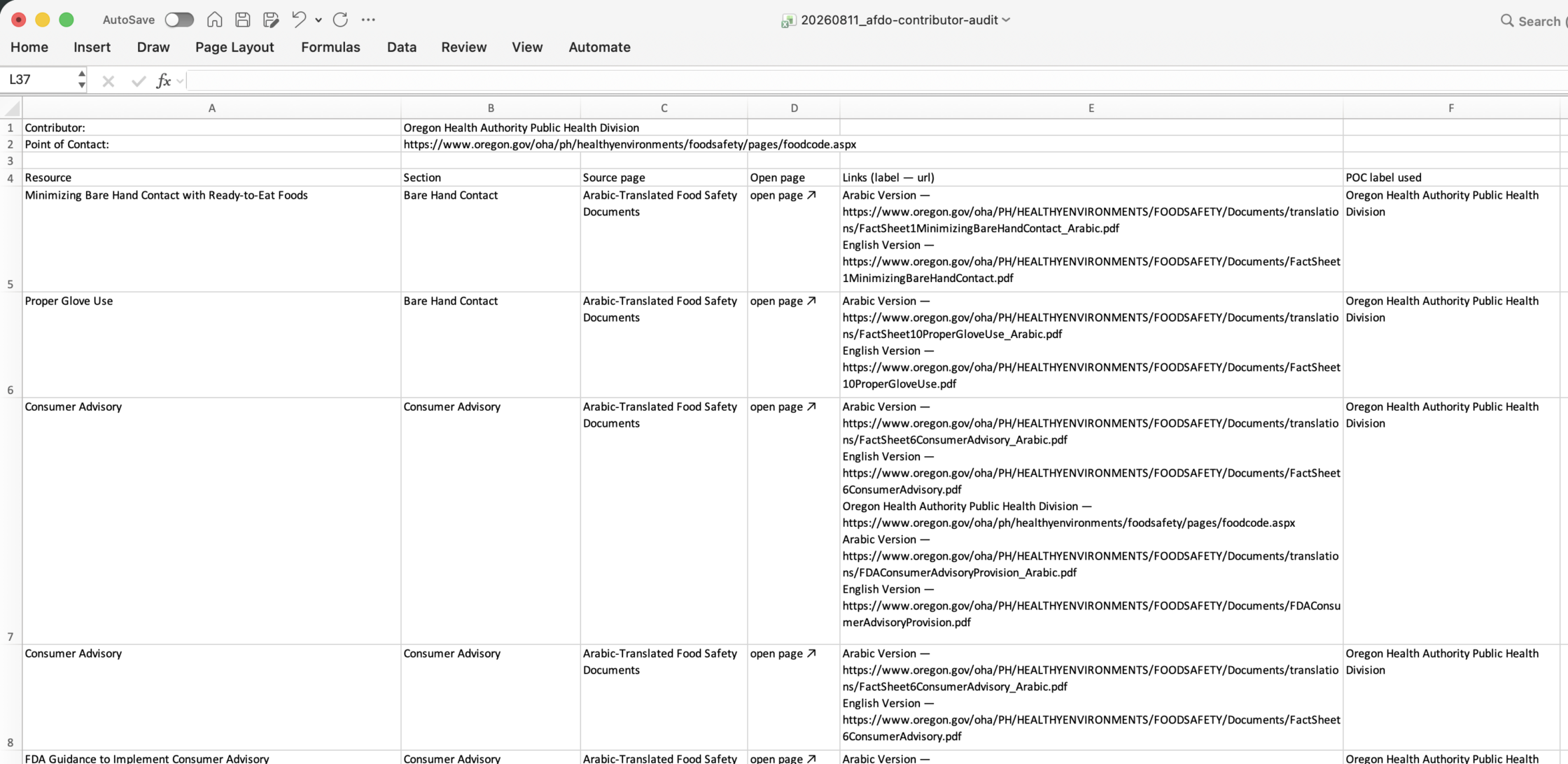
example agency tab in Excel
6
If something looks wrong
Do not fix errors by editing the spreadsheet. The workbook is generated — any hand-edits are lost the next time it’s run, and the same error will come back next year.
Instead, report what looks wrong (which tab, which row) to mkyle@afdo.org. The tool gets corrected once, and a fixed workbook regenerates in under a minute — permanently, for every future run.
If you have any questions, please reach out to Marie via Teams or at mkyle@afdo.org