1
Login to the ‘Dr Link Check’ website
- Navigate to https://www.drlinkcheck.com/account/login
- Enter the username and password
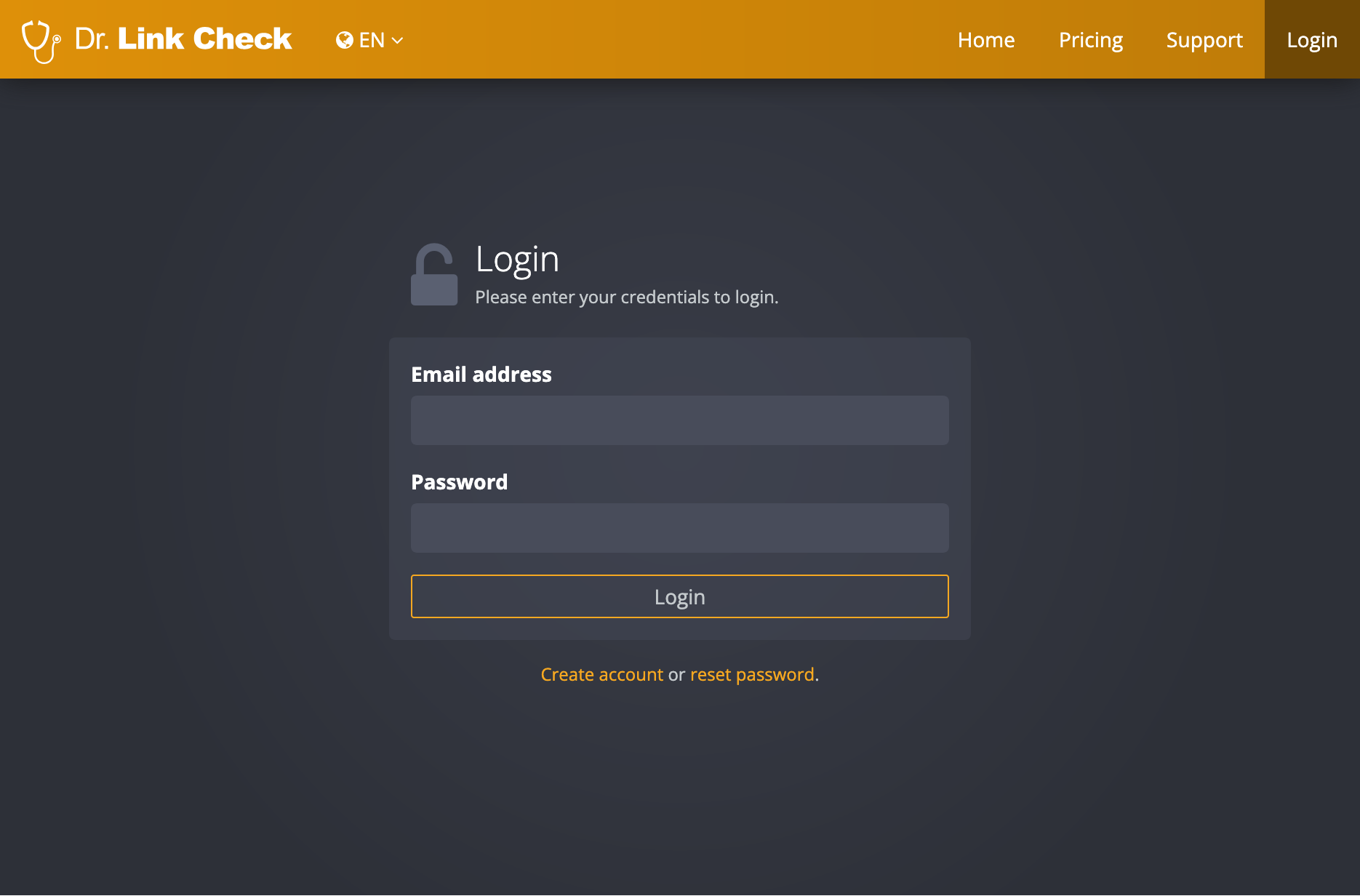
For access to the login credentials, contact Christina via Teams.
2
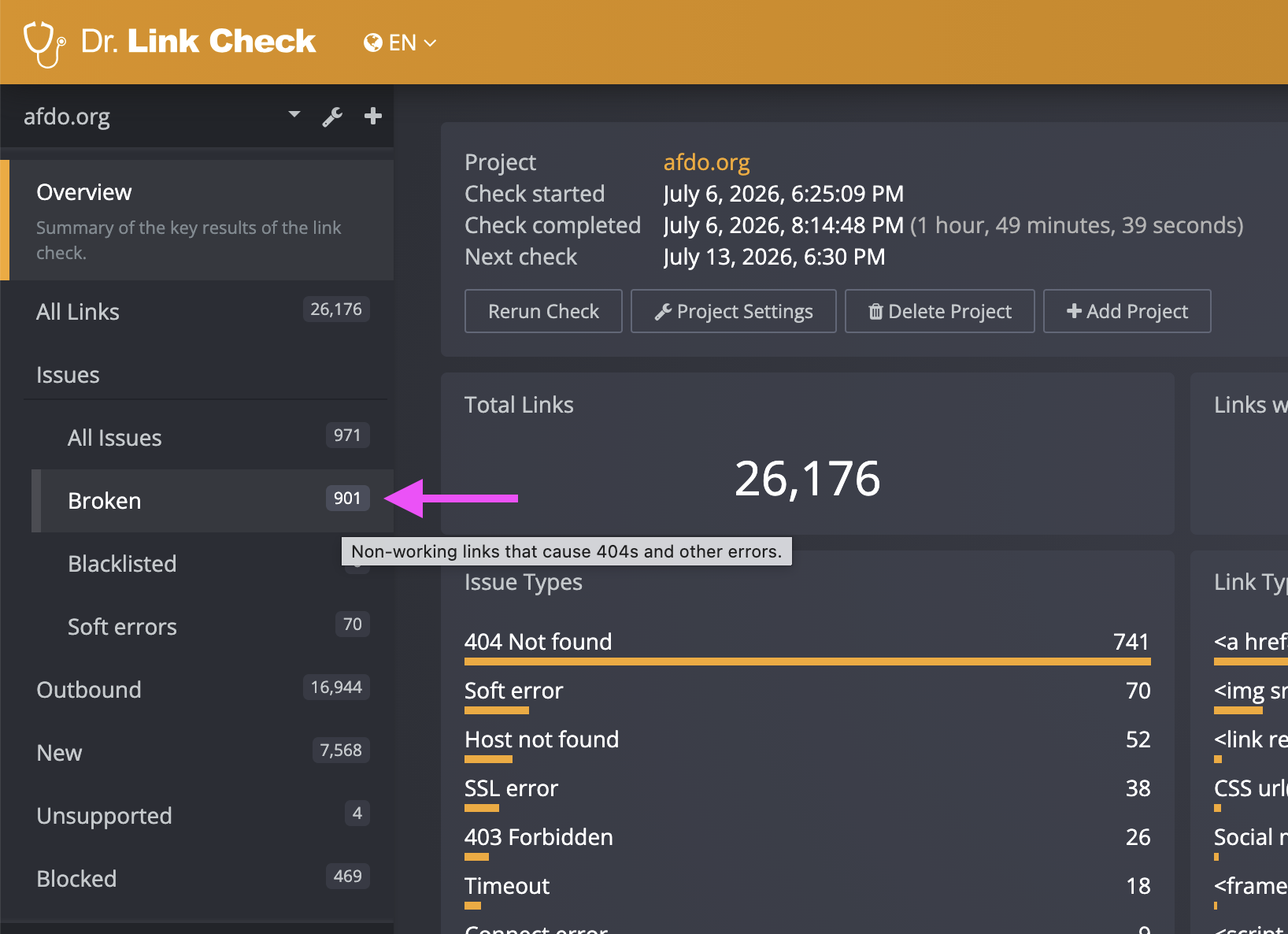
Navigate to the ‘Broken Links’ report
- In the navigation, under ‘Issues’, click on ‘Broken’ (direct link)
3
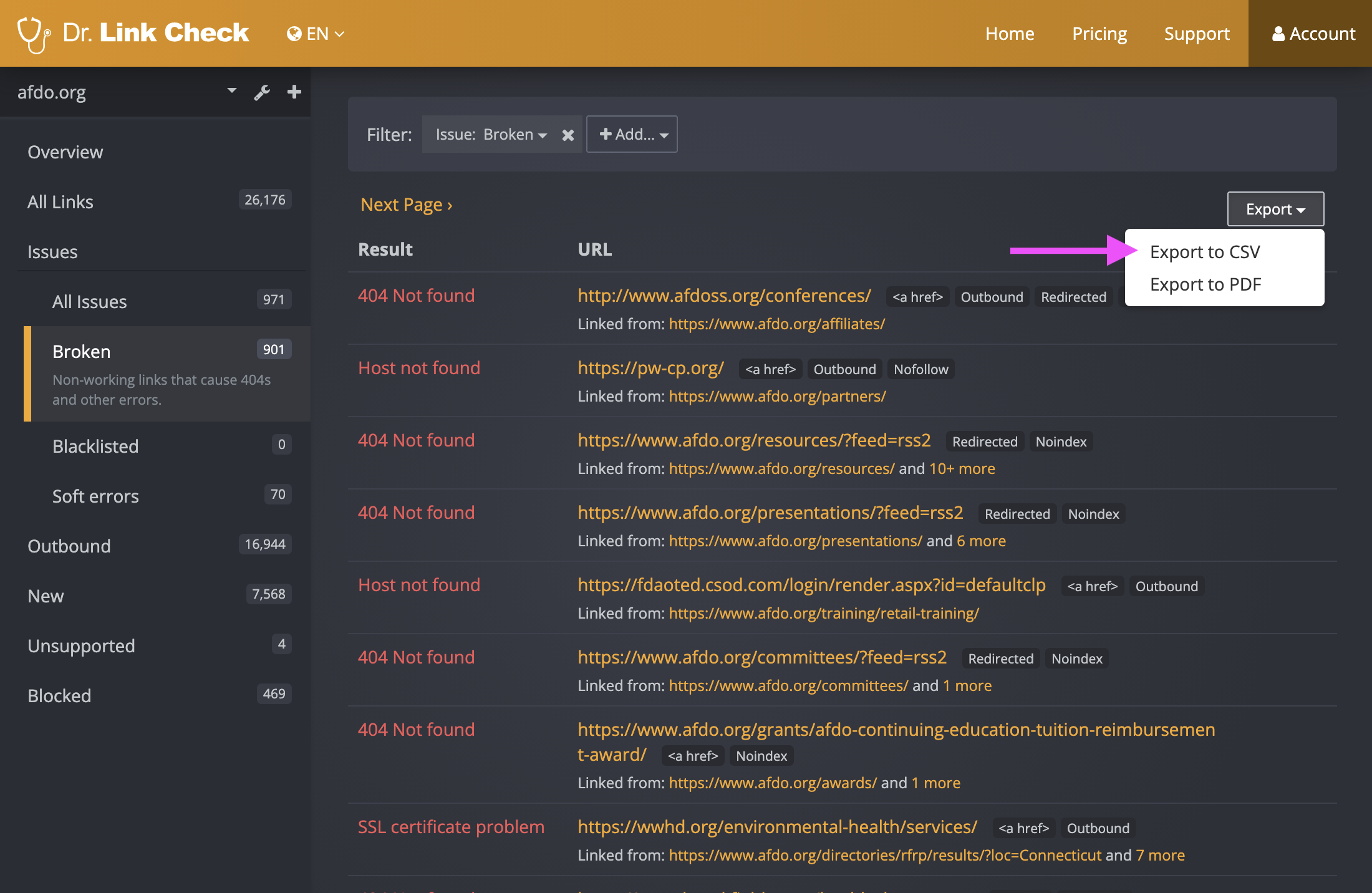
Export the report
- On the ‘Broken’ report screen, click on the ‘Export’ dropdown
- Select the ‘CSV’ option
4
Triage the report
The report you download will be a full and complete list of all potential link related issues found on the site. This report will be overwhelming. To make it more manageable, you need to run it through the ‘Broken Link Triage’ tool
- Navigate to the ‘Broken Link Triage’ tool (direct link – open in a new window – no login required)
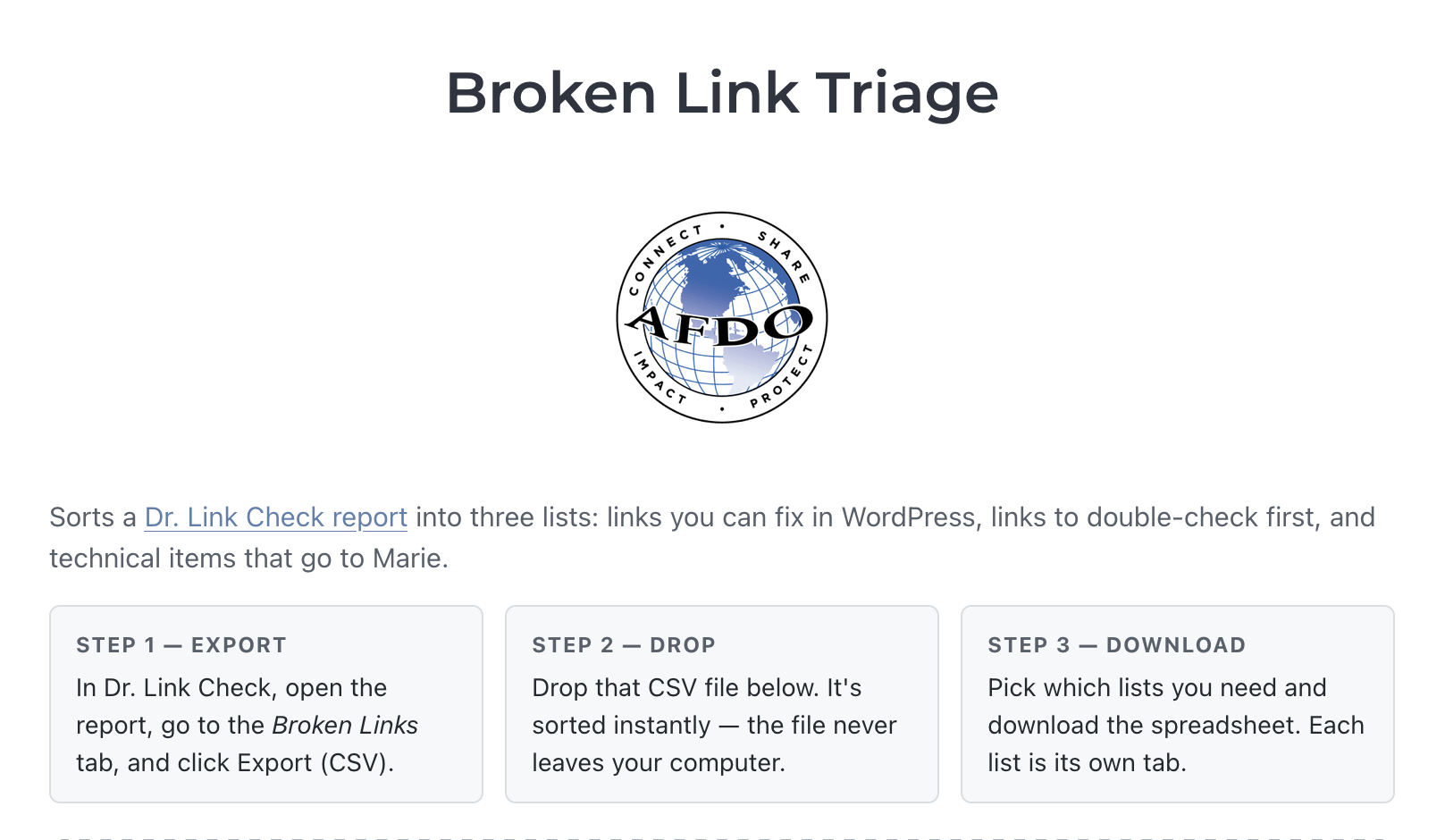
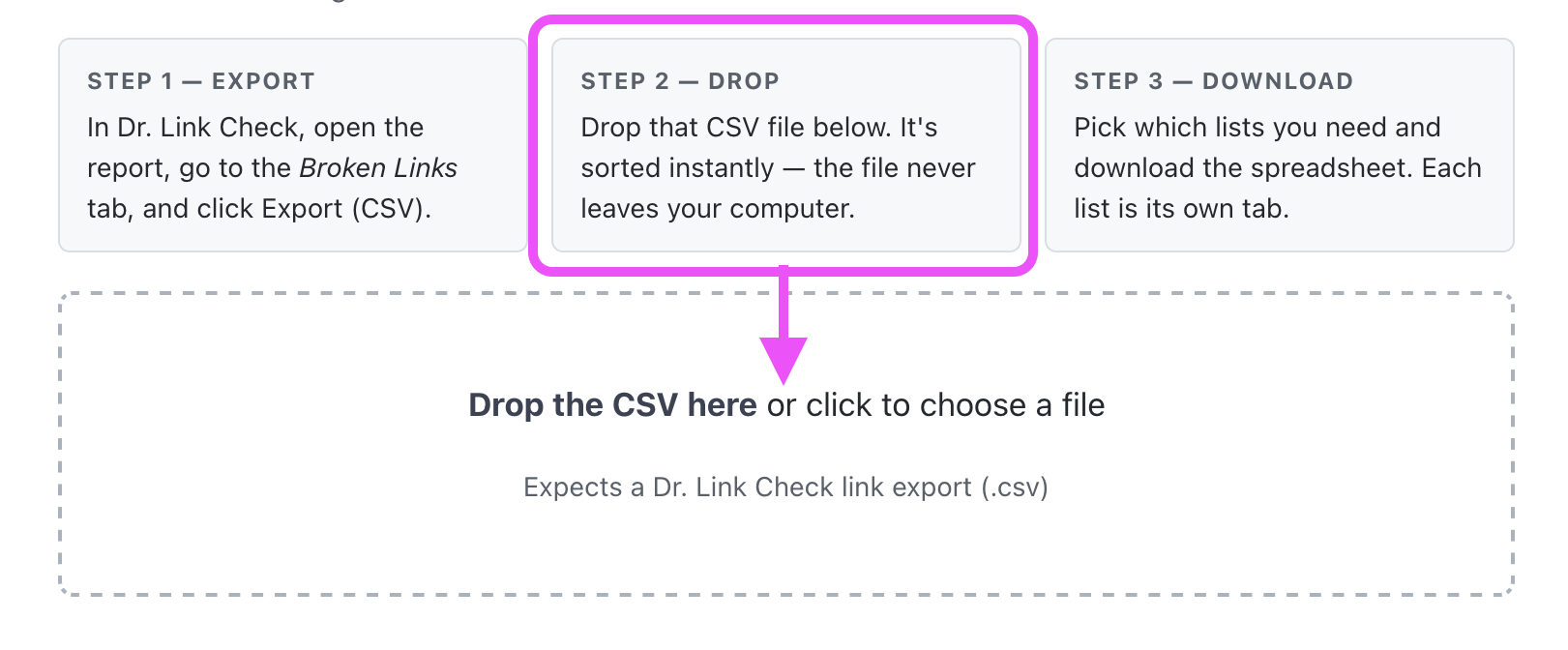
- Upload the CSV file to the tool (either via drag and drop, OR click the upload option:
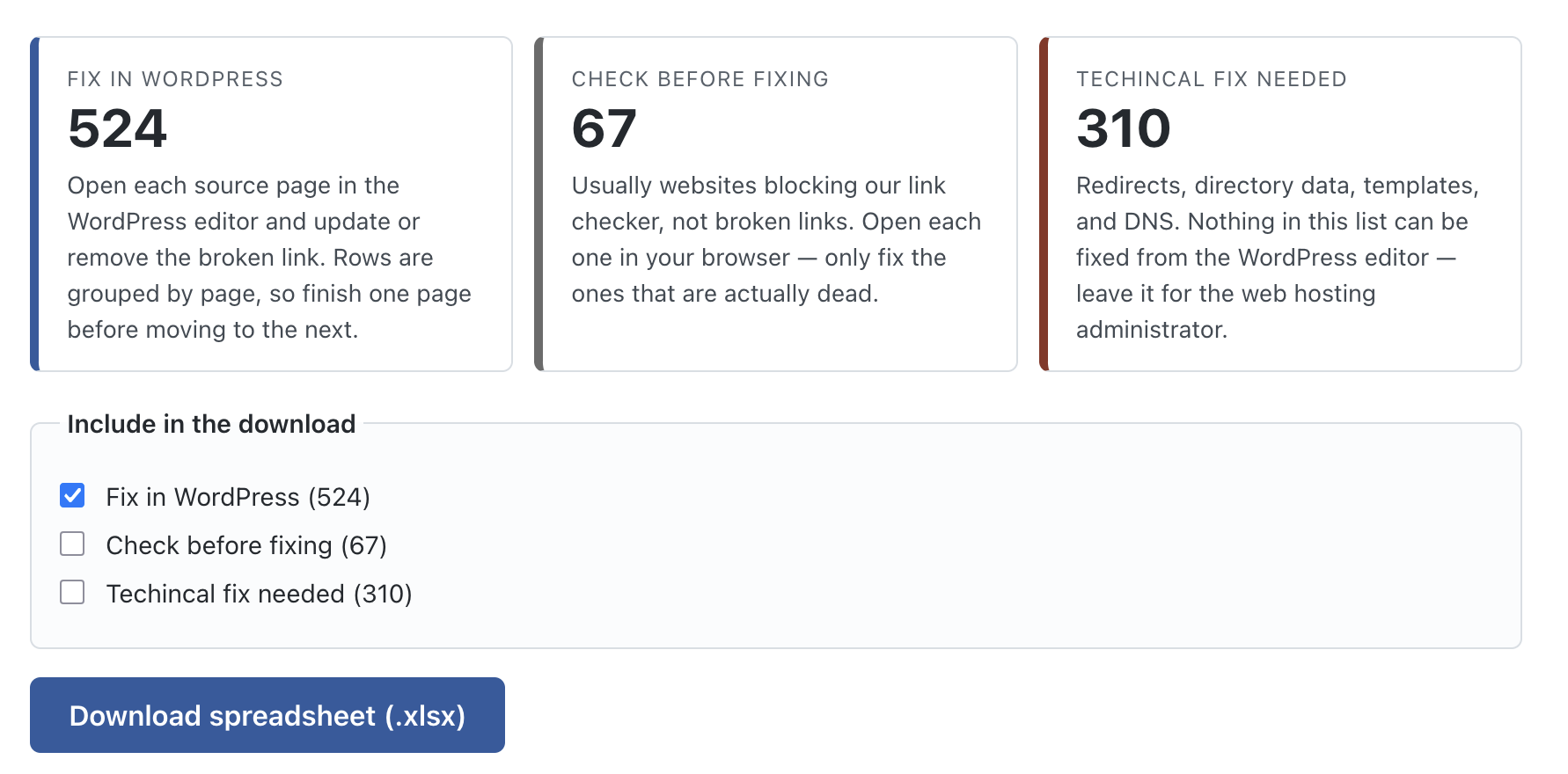
- Download a triaged report. At a minimum, you should select the “Fix in WordPress” report. It will show you all the links with verified errors that can be checked and fixed within wordpress admin.
- Once the triaged report has been downloaded to your device, please upload a copy of it to Sharepoint > Documents > Website > Broken Link Reports
4
Start reviewing links
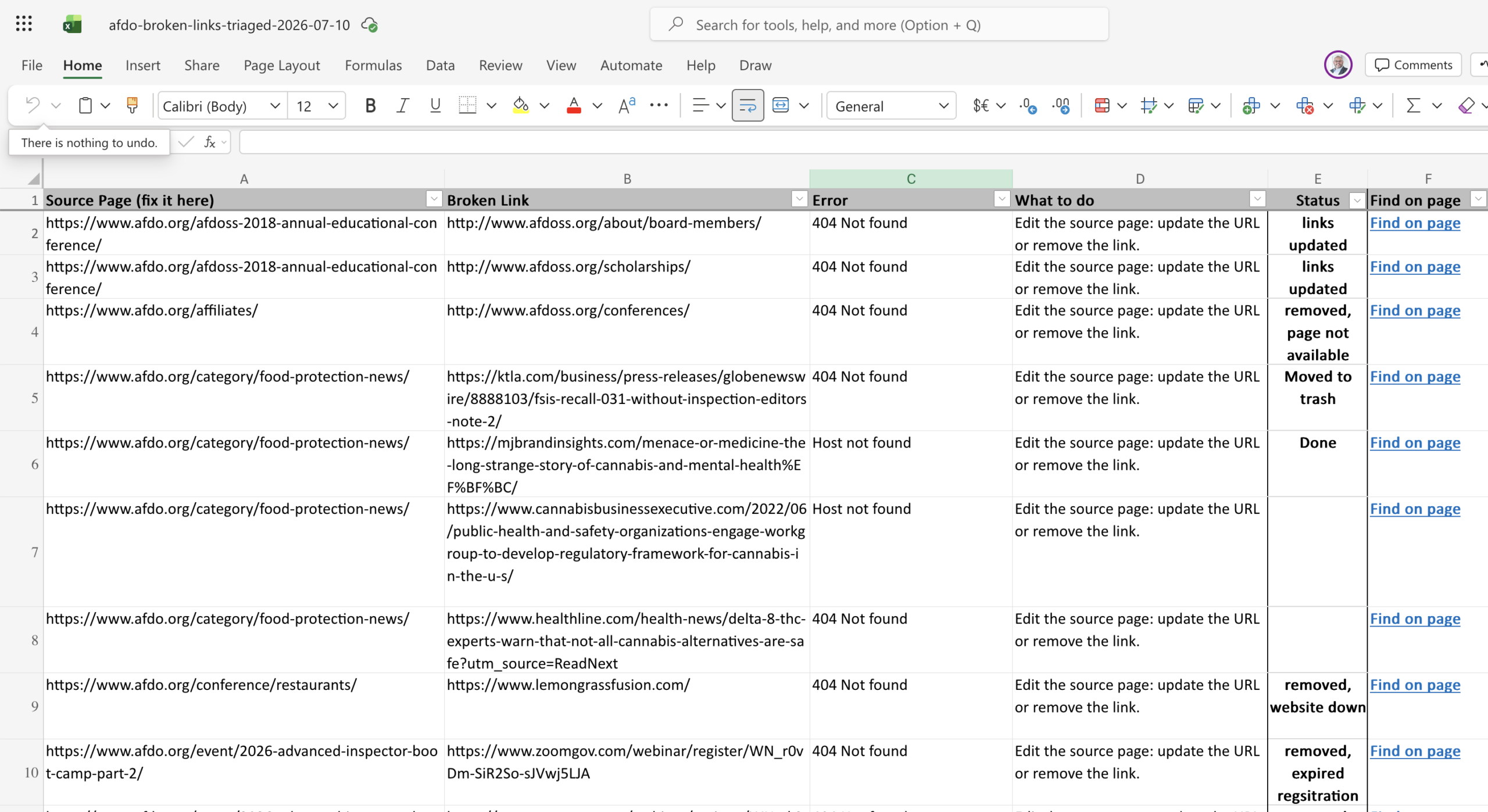
Open the most recent triaged report in Sharepoint. The report will provide you with more clear information on which links are fixable within wordpress admin and what steps you can take to fix the links. Steps to using the spreadsheet effectively:
- Make sure you are logged in at afdo.org/staff-login before you click on any links on the spreadsheet
- To investigate a broken link on the spreadsheet, click a link in the “Find on Page” column
- From there you can go into the wordpress dashboard to fix or delete the link
- Once a link has been updated, go back to the spreadsheet and updated the “Status” column
(below is an example of a triaged report)
If you have any questions, please reach out to Marie via teams or at mkyle@afdo.org