Step-by-Step Instructions
1. Login to wordpress (admin access required)
Important: Navigate to afdo.org/staff-login, then enter your email and password. If you have any trouble logging in, please contact afdo@afdo.org.
2. Go to the Gravity Forms Export page
Navigate to Gravity Forms Import/Export page (Dashboard > Forms > Import/Export)
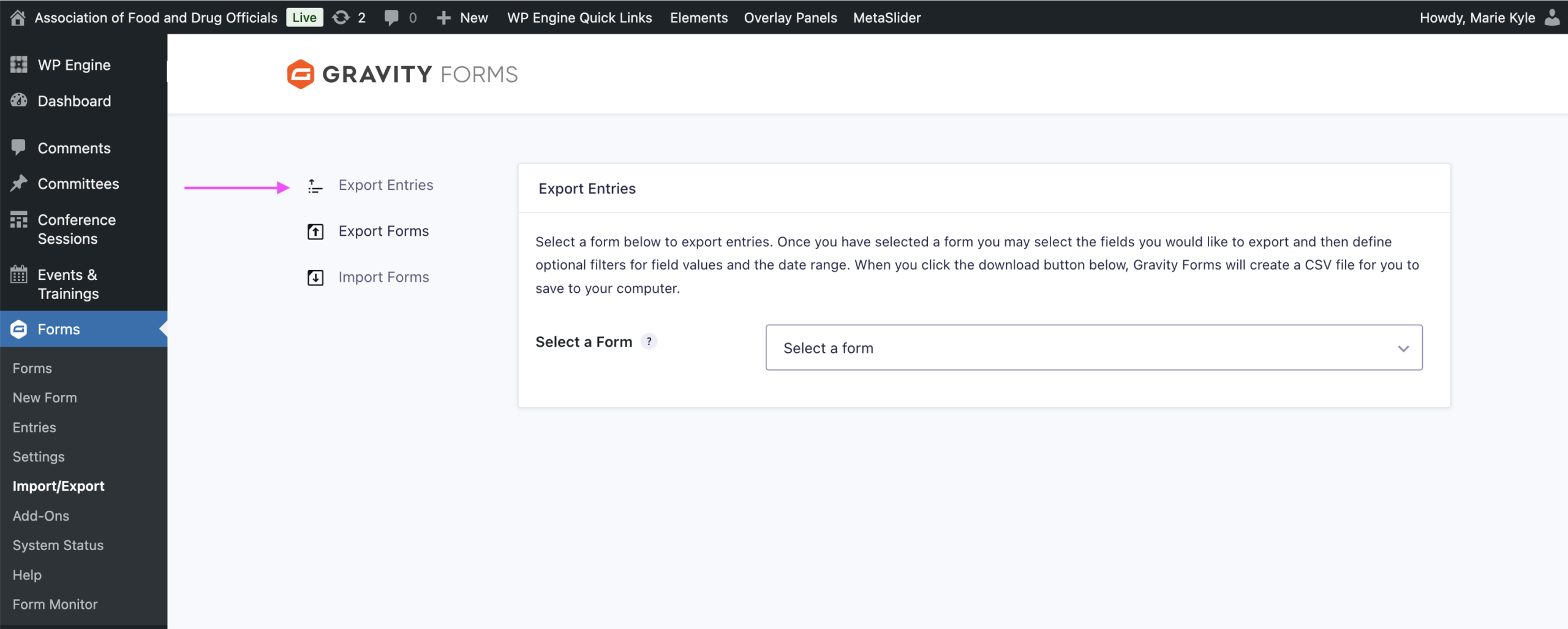
3. Select the PSA Course Registration Form
On the Export Entries page, from the dropdown, select “PSA Grower Course Registration”
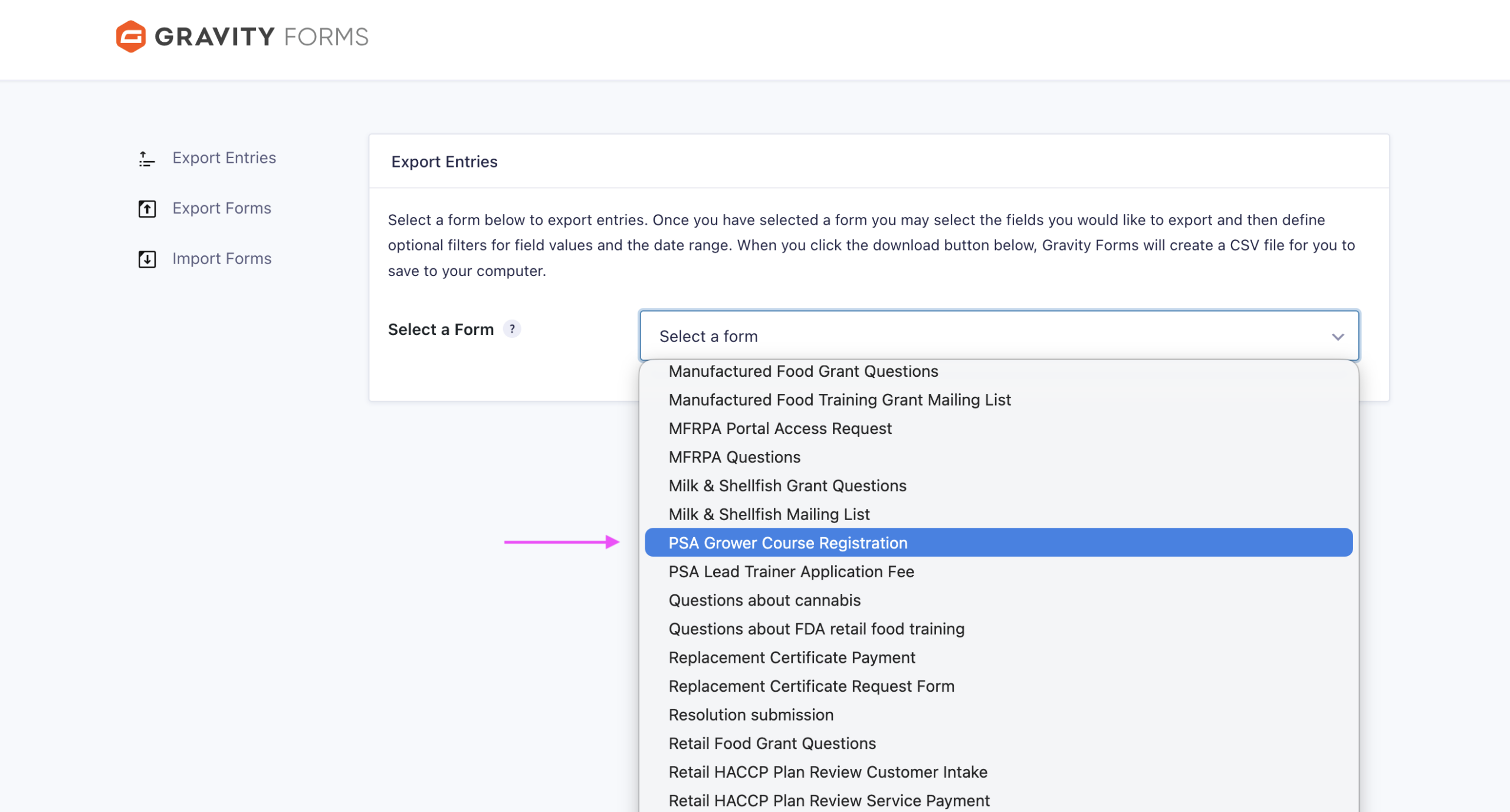
4. Choose the Form Fields for the Report
The page will update to display all the form fields available for the form. Select all the fields that you want. If you are unsure if what data is being displayed for the available fields, you can go to the live entries page to see examples of submissions: https://www.afdo.org/wp-admin/admin.php?page=gf_entries&id=109
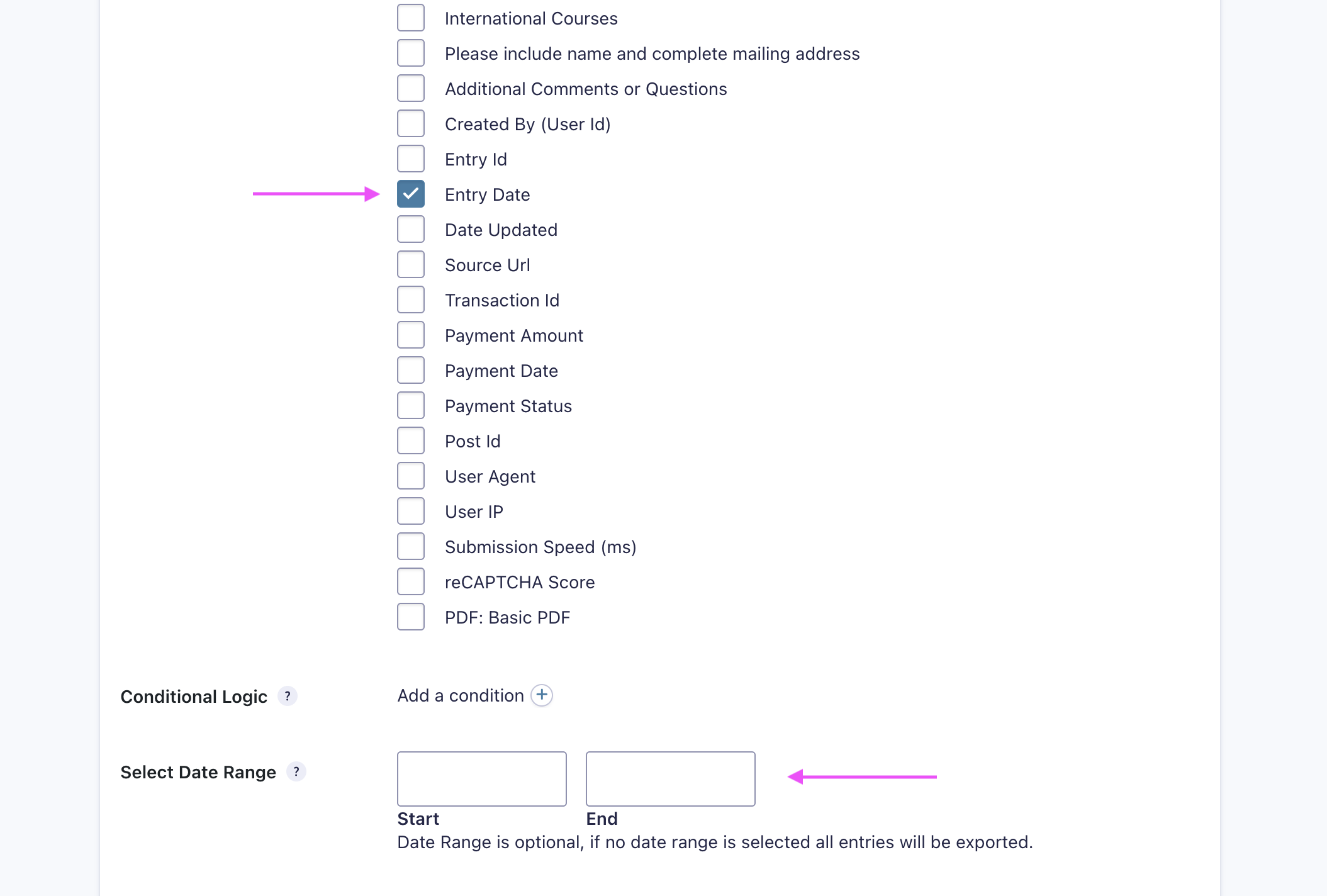
Once you select which fields you want as part of the report, scroll to the bottom of the page.
- If you want the course submission date as part of your report, select the “Entry Date” checkbox
- If you want data for a specific time period, enter the start and end date in the “Select Date Range” fields.otherwise leave it blank to get all submissions since 2024.
5. Download the Report
Finally, select the “Download Export File” button and a csv file will be downloaded to your machine, most likely in your Downloads folder.
