Prerequisite: You must have a Salesforce ADMIN account to create committee user accounts for AFDO members, and the Member must have a contact record in Salesforce.
1
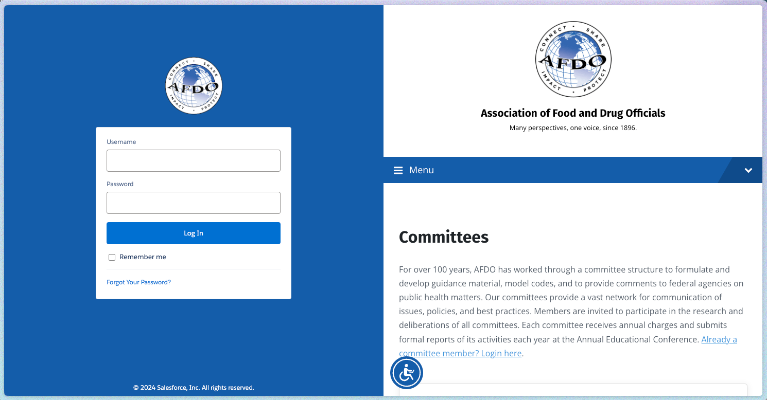
Login to AFDO’s Salesforce dashboard
- Navigate to https://afdo.my.salesforce.com/
- enter you email address in the username field
- enter your password, in the password field
- Click the LOG IN button
2
Search contact records using the member’s name
- At the top of the screen, use the search bar to enter the member’s name
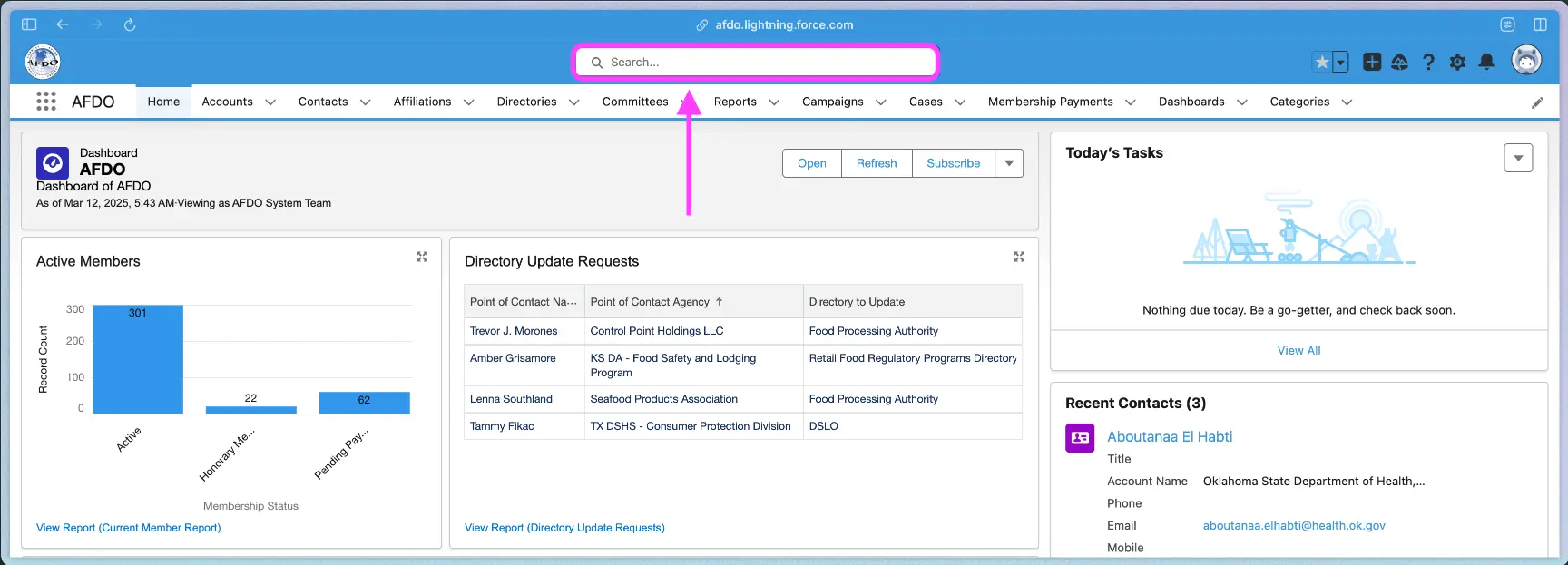
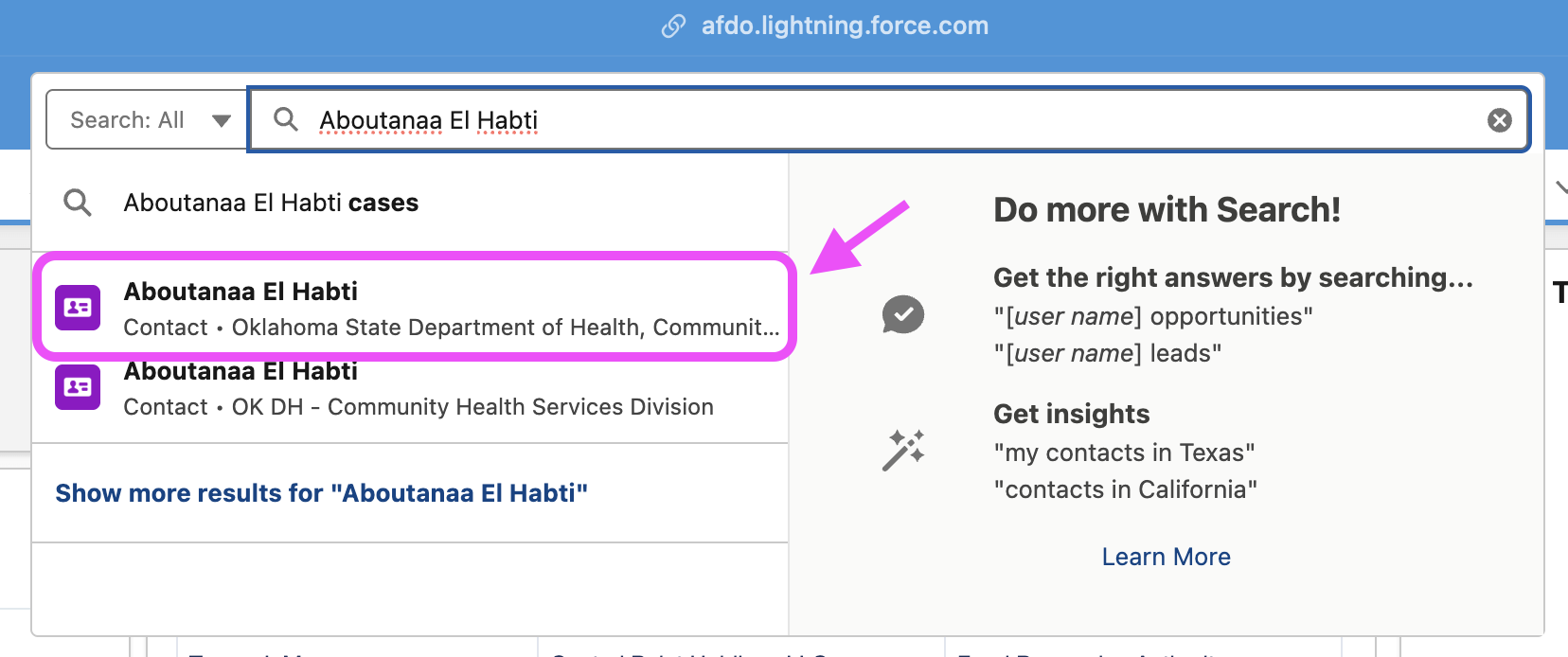
- Once you find the contact record you are looking for, click on it
3
Navigate to the “Enable Customer User” link
On the contact page, there will be an “action bar” below the main navigation on the right of the page
- Click on the dropdown arrow at the end of the “action bar”
- Then select the “Enable Customer User” link
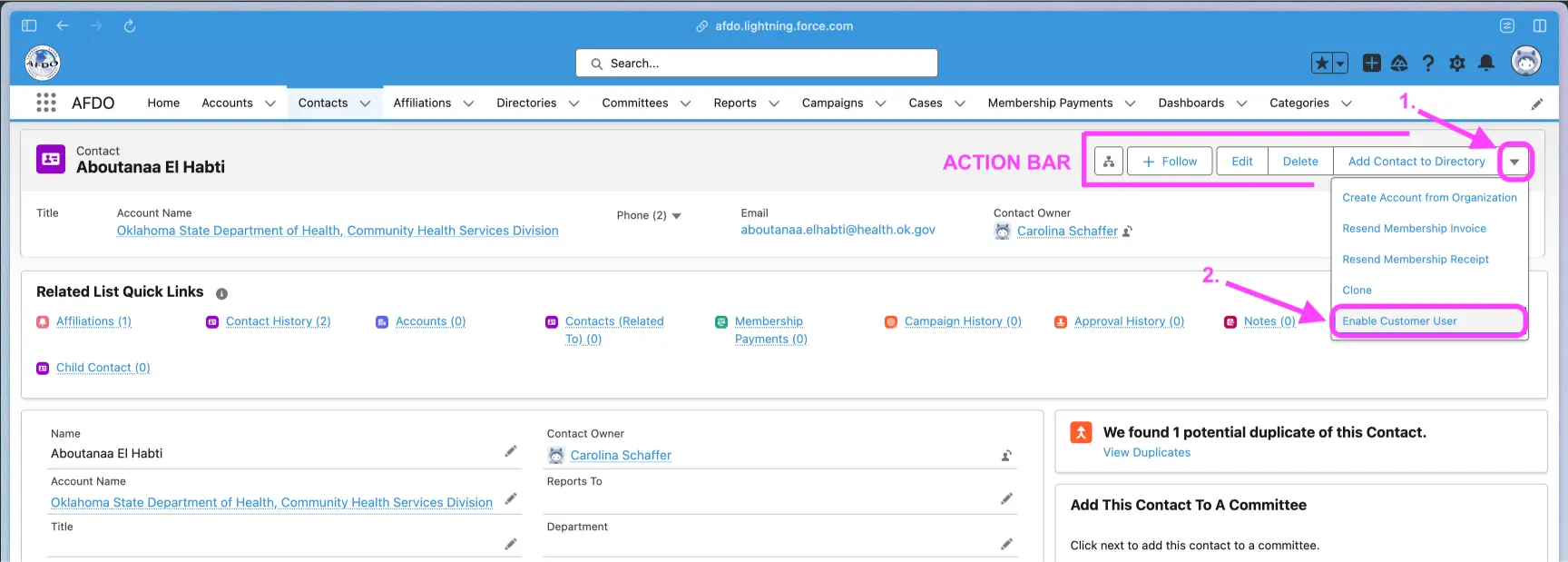
Next you will be taken to the New User setup screen
4
Setup Community User Account
On the New User setup screen, do not change anything except the PROFILE field. From the dropdown options, select AFDO Community User.
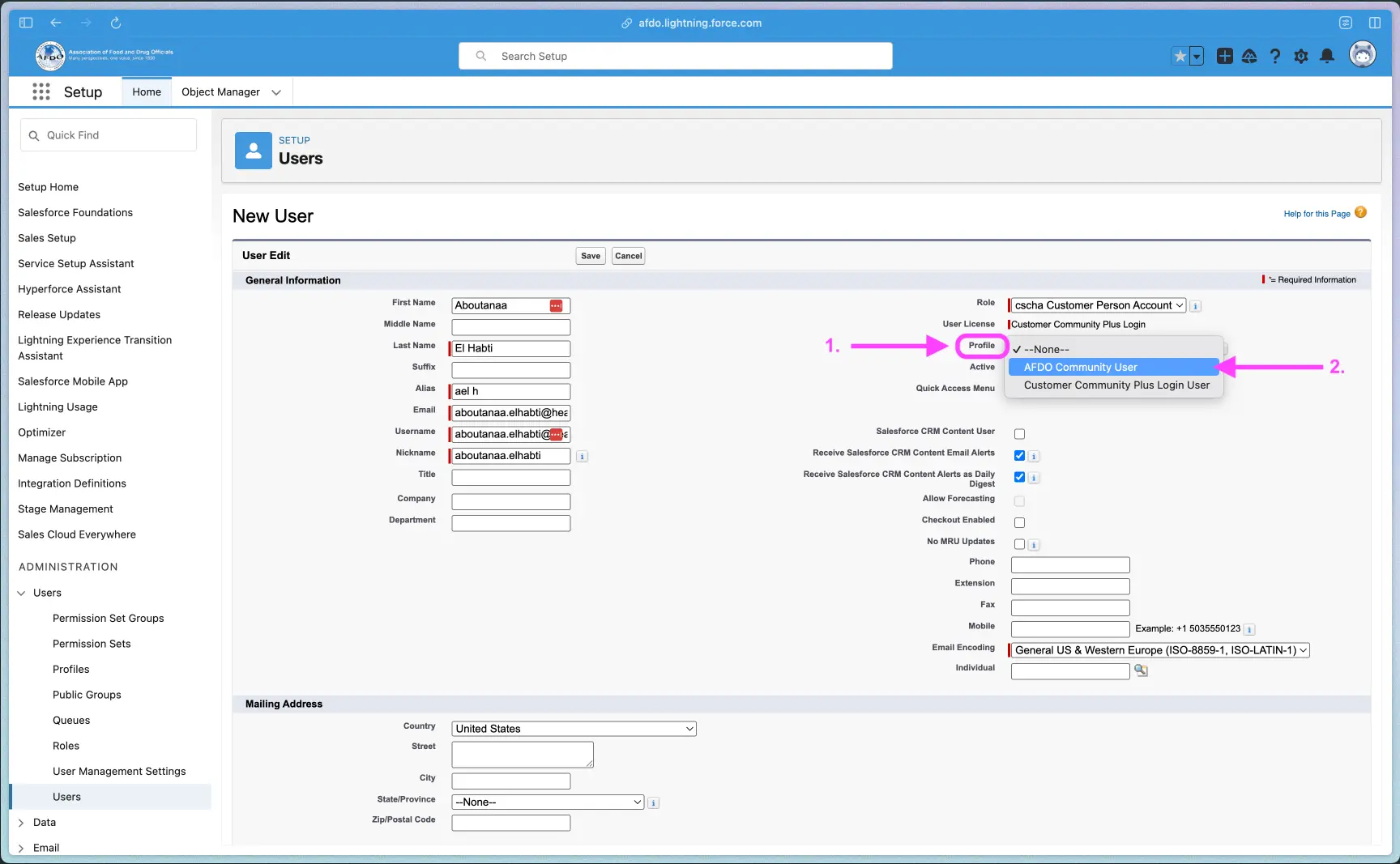
Then scroll to the bottom of the screen and click the SAVE button:

5
Confirm welcome alert
Before the community user account can be save, you must confirm you’ve read the Welcome Alert by clicking the OK button on the screen
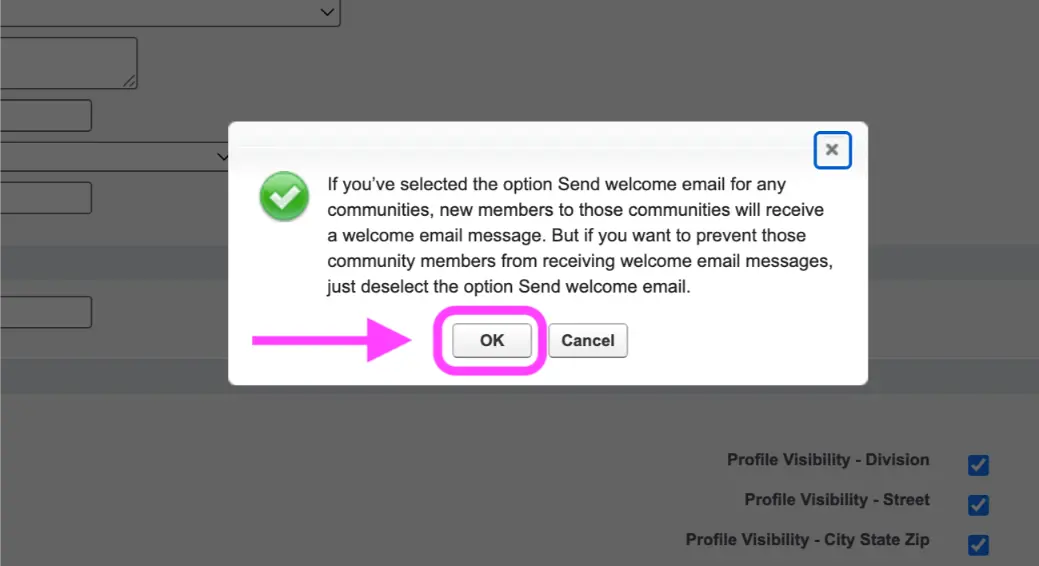
That’s it! Now a welcome email with information about their new AFDO Community Login will be sent to the member.