Which alert did you get?
Use this guide when a post in the Website Alerts Teams channel says a website had an email problem. The alert’s headline tells you how fast to act.
| Alert headline | What it means | What to do |
|---|---|---|
| URGENT: A website cannot send emails right now | Form confirmations and staff notifications from that site are not going out. | Act now. Do Part 1, then Part 2. |
| Website email: main connection failed, backup is covering | The main email connection broke, but emails are still going out through the backup. | Fix it today. Do Part 1, then the quick check in Part 2. |
Before you start:
- Reply to the Teams post with “I’m on it” so nobody else works on the same site.
- Note the site named in the alert. You will log into that site’s WordPress admin.
- Have the afdo@afdo.org Microsoft 365 login ready. You need it to reconnect email.
For access to the afdo@afdo.org Microsoft 365 login, you need a Birwaden account. Contact afdo@afdo.org for access.
Part 1: Reconnect the email connection
Most failures happen because the site’s Microsoft 365 sign-in expired. Reconnecting takes about two minutes.
1
Log into the WordPress admin of the site named in the alert.
Examples:
- afdo.org/staff-login
- healthcareproducts.org/hpc-login
2
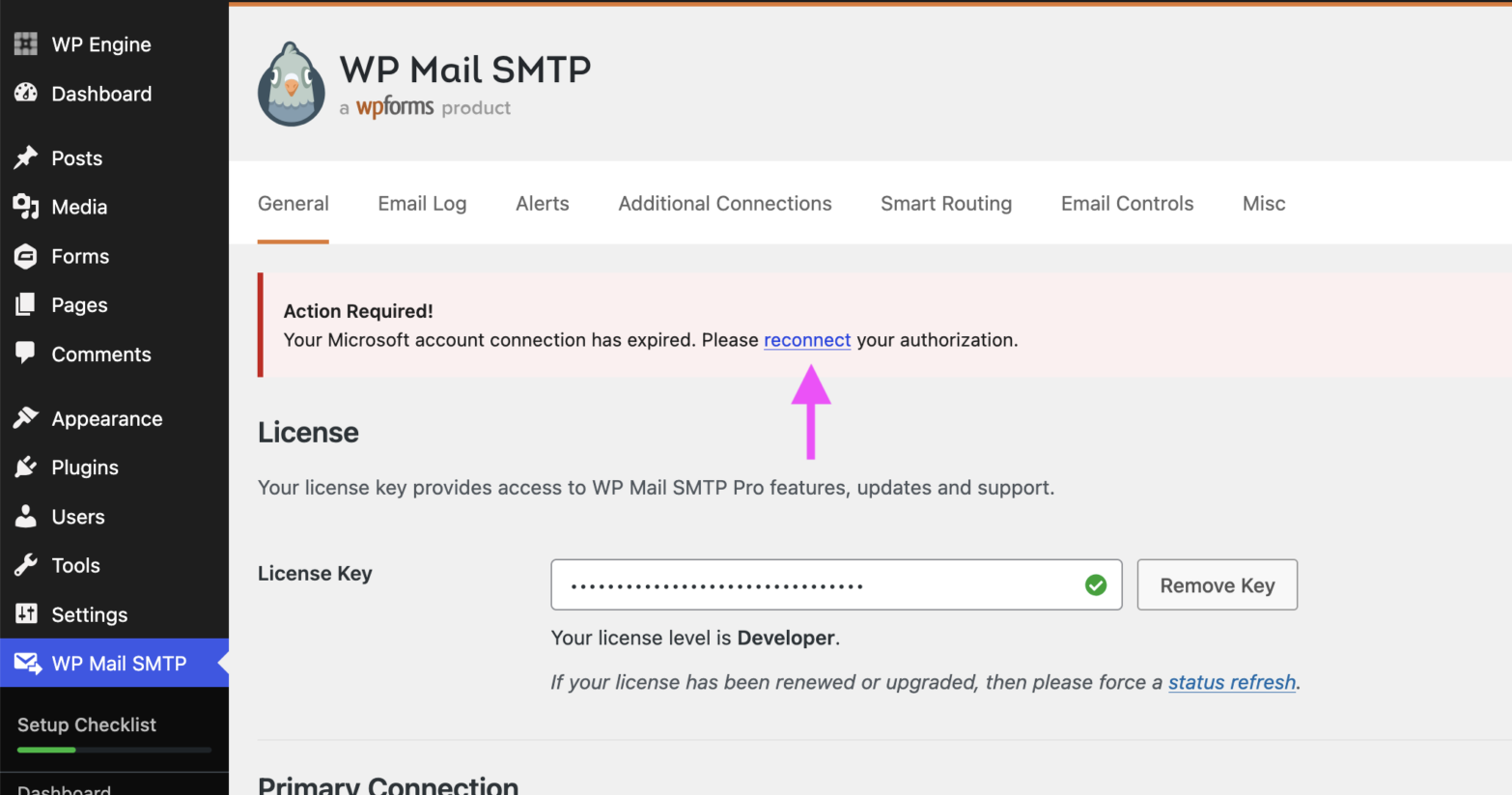
In the left sidebar, go to WP Mail SMTP → Settings. A red Action Required! box at the top confirms the Microsoft connection expired.
3
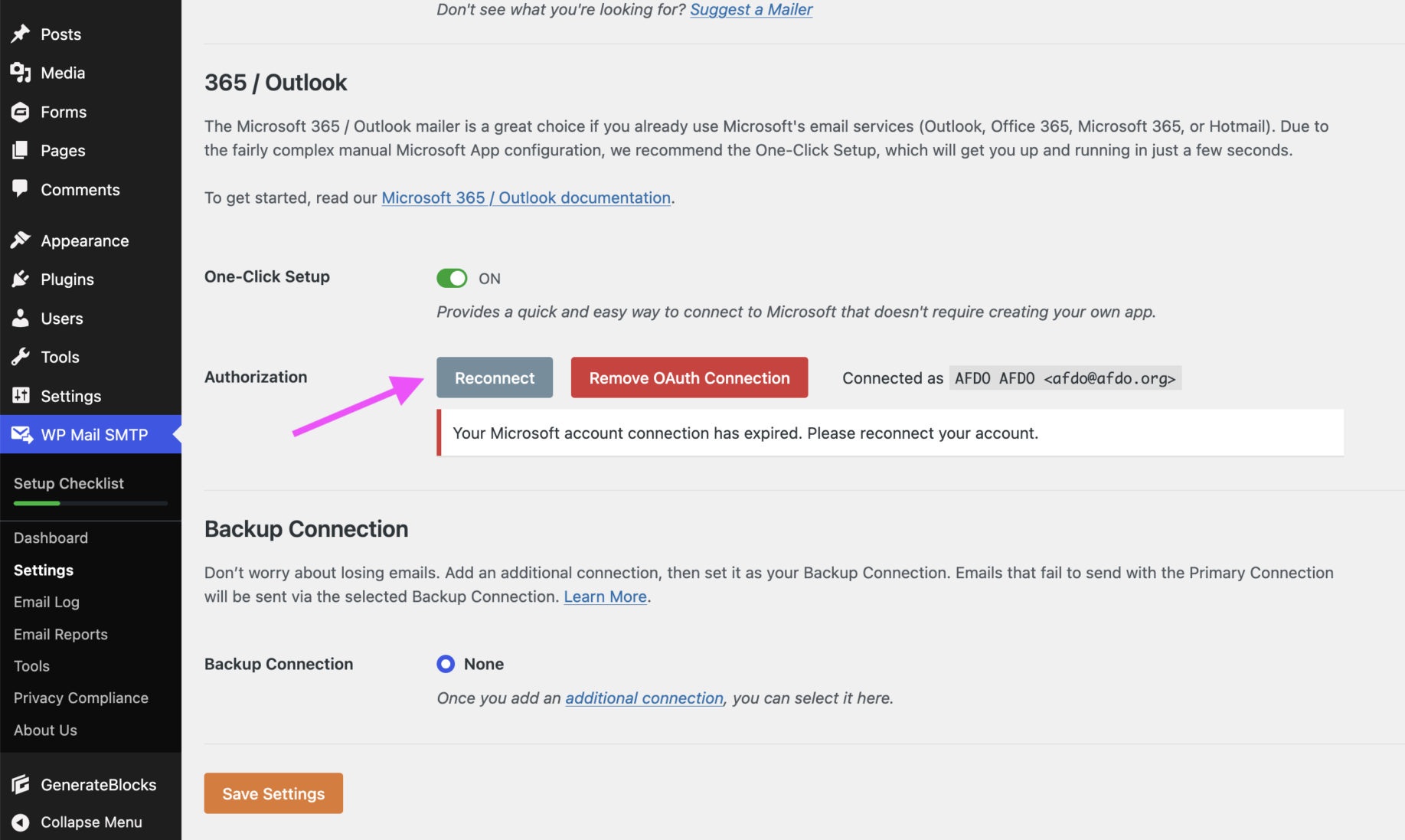
Scroll down to the 365 / Outlook section and click Reconnect.
4
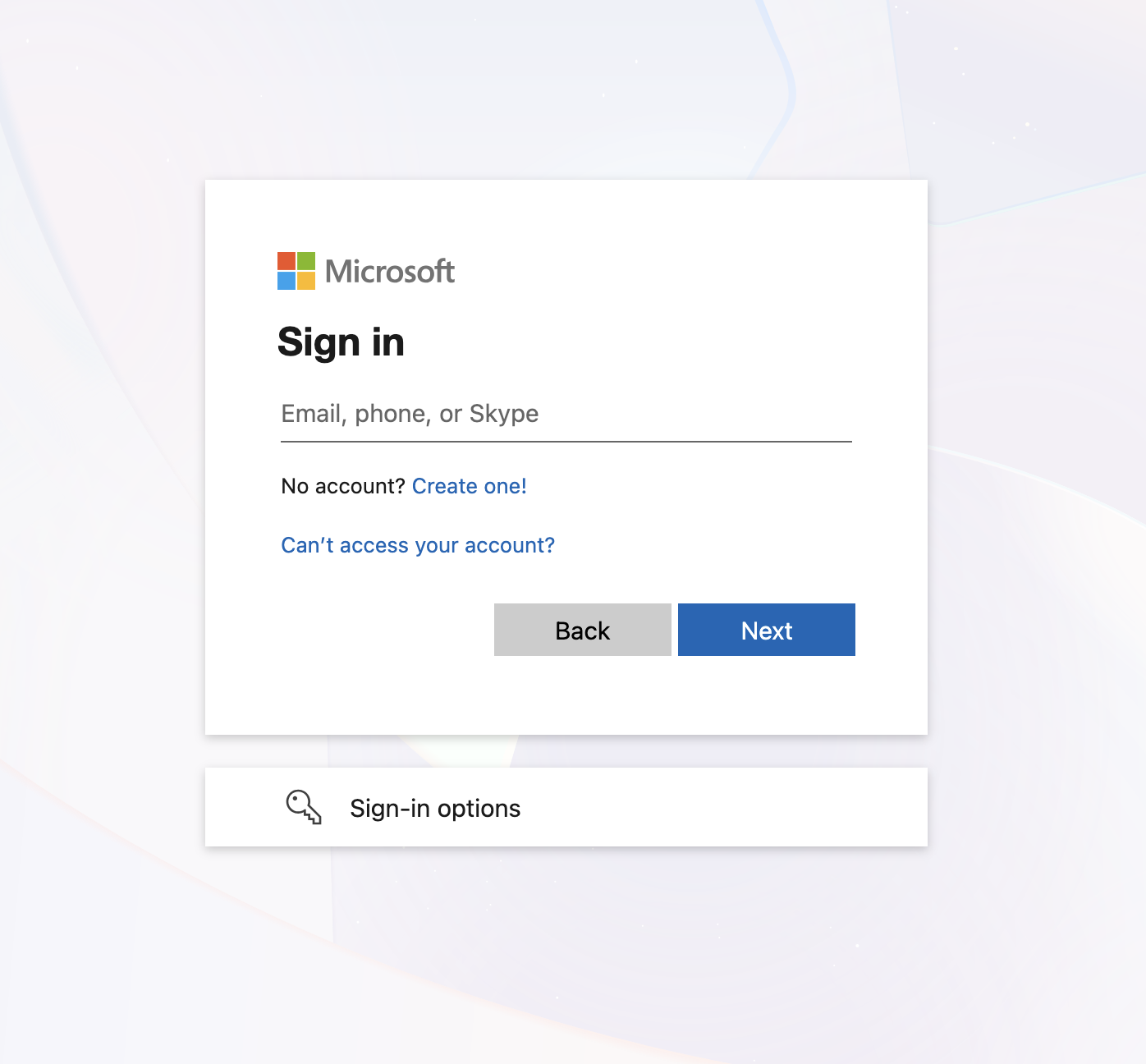
A Microsoft sign-in window will open. Sign in as afdo@afdo.org, not your own account, and approve the request.
5
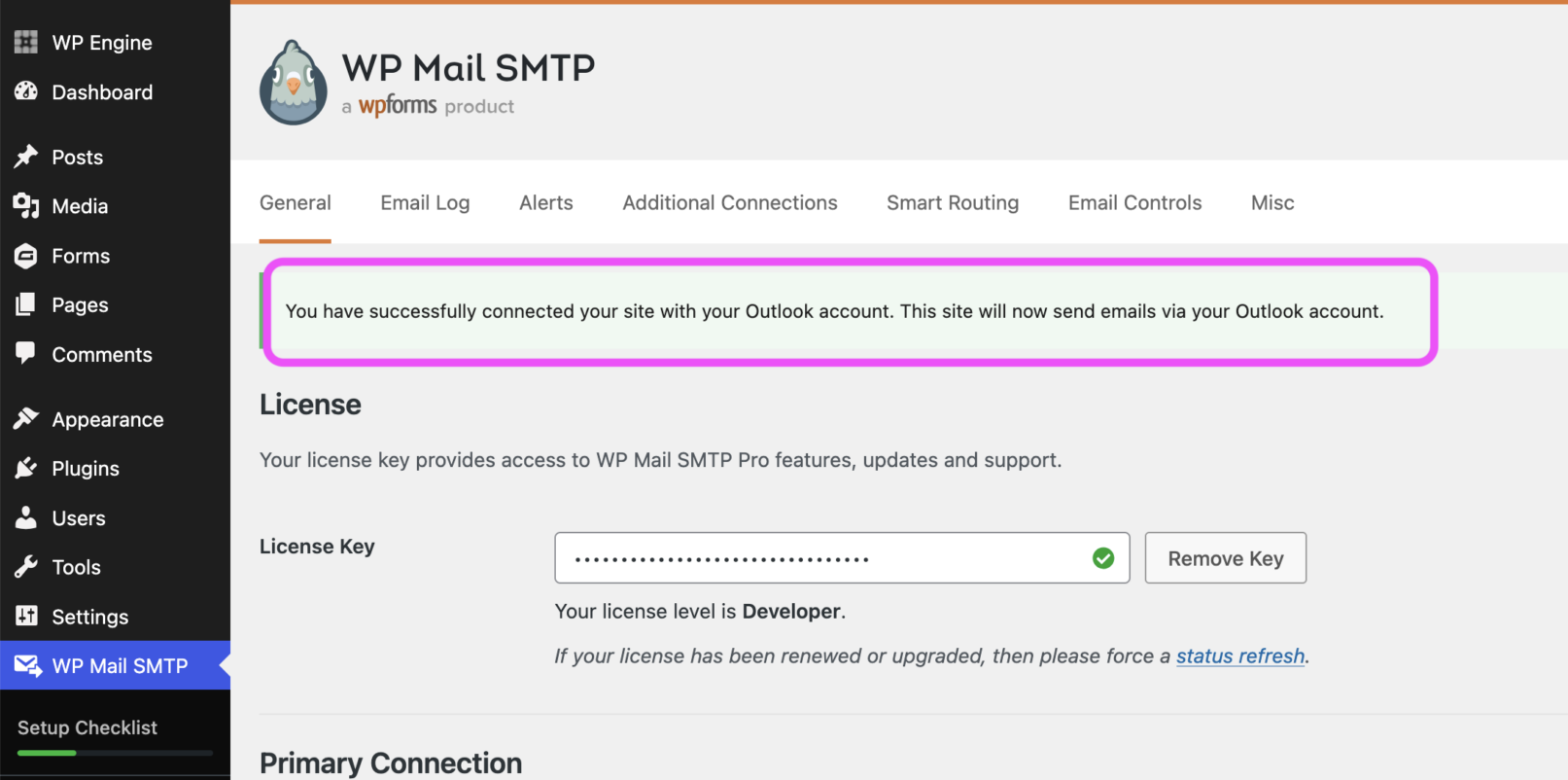
You return to the settings page. A green message confirms the site is connected to Outlook again.
6
You return to the settings page. A green message confirms the site is connected to Outlook again.
If you see a different error, or the Reconnect button does not fix it, stop and post the error in the Website Alert Teams channel.
Part 2: Resend form notifications that never went out
While email was down, form submissions were saved on the website but their emails were not sent. Find those entries and resend them.
If your alert said backup is covering, emails still went out. Check the most recent entry on one or two forms to confirm, then skip to Finish up.
Find which forms were affected
1
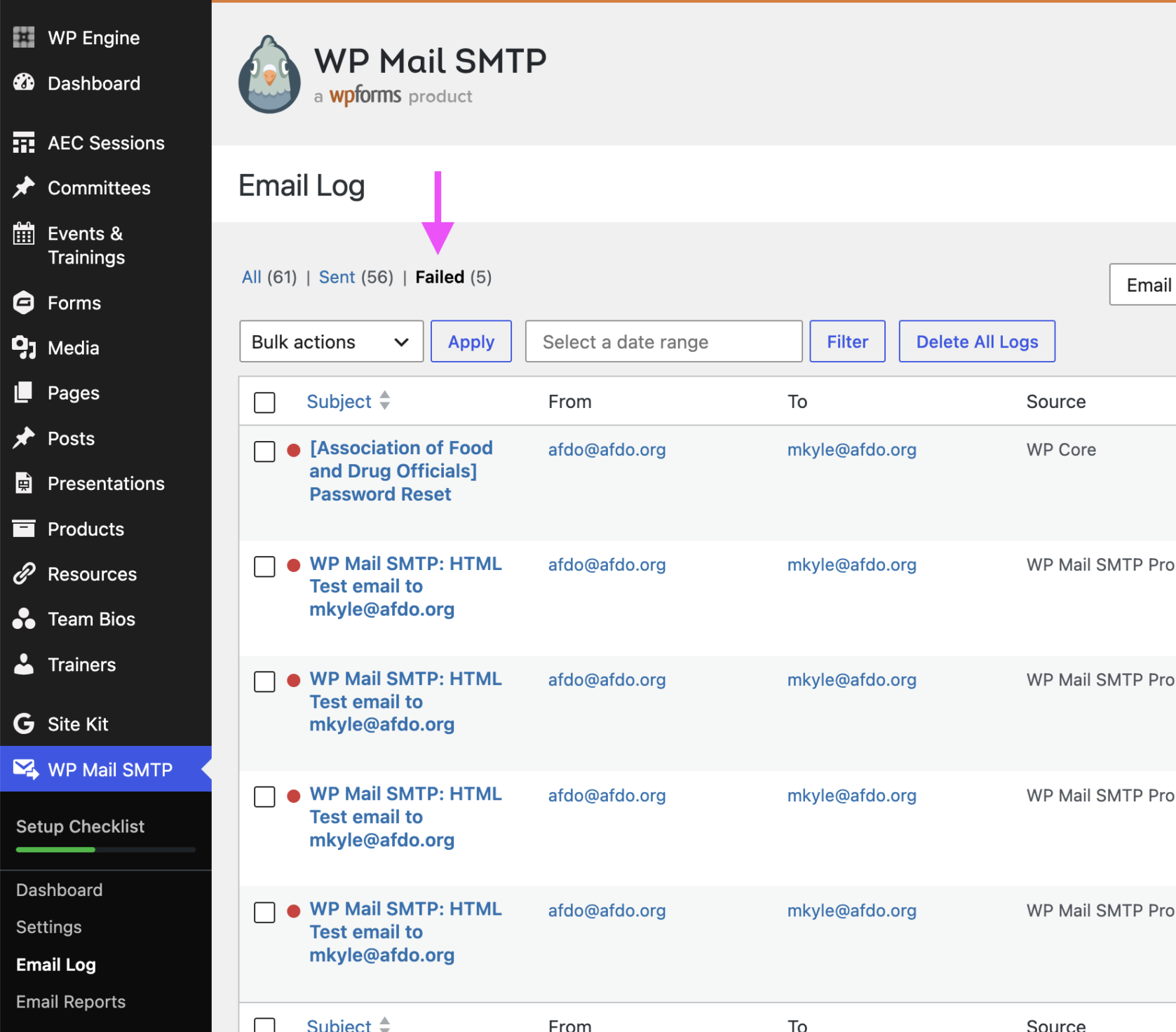
In the WordPress dashboard, go to WP Mail SMTP → Email Log and click the “Failed” link at the top of the list.
Note the subjects and dates of the failed emails. The subject usually give you an idea of what form sent it, and the dates tell you how far back to check.
Check and resend each affected entry
1
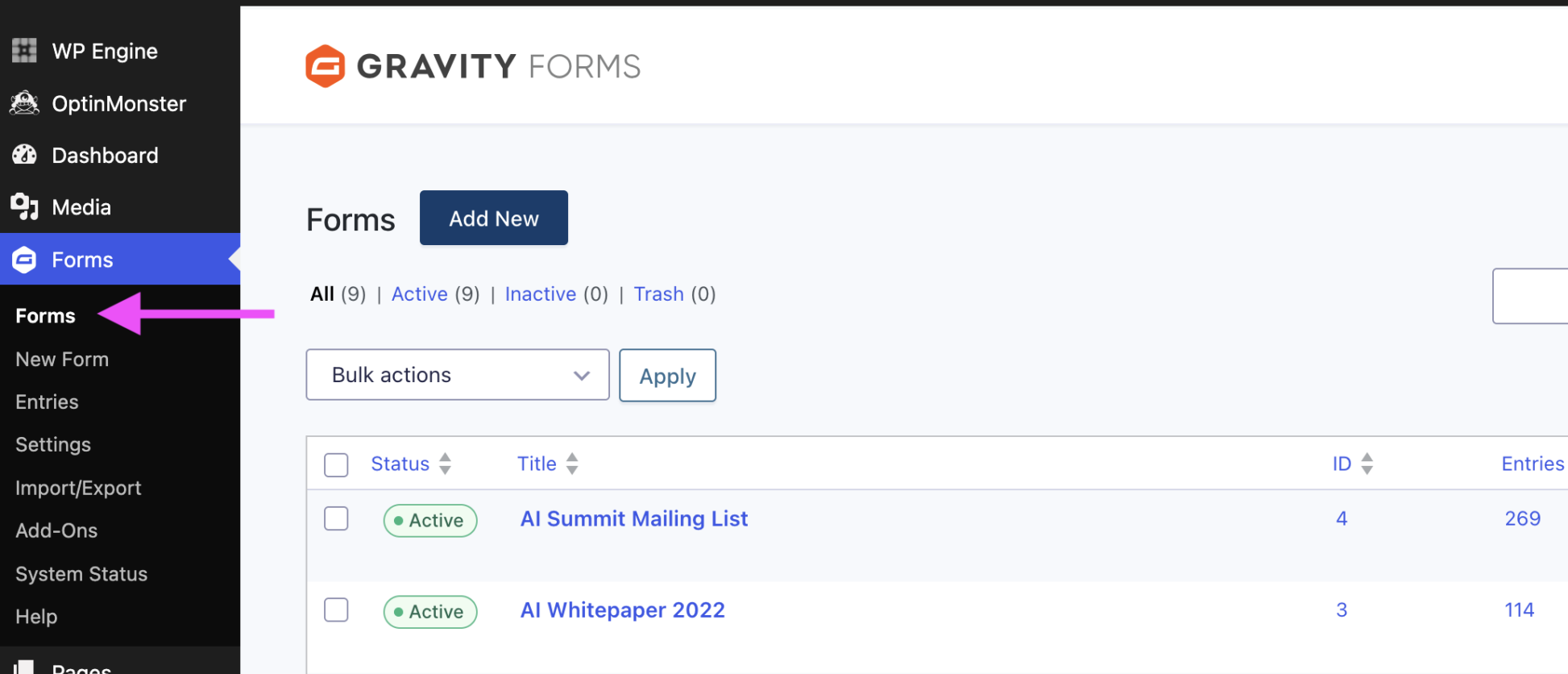
In the left sidebar, click Forms. This opens the Gravity Forms list.
2
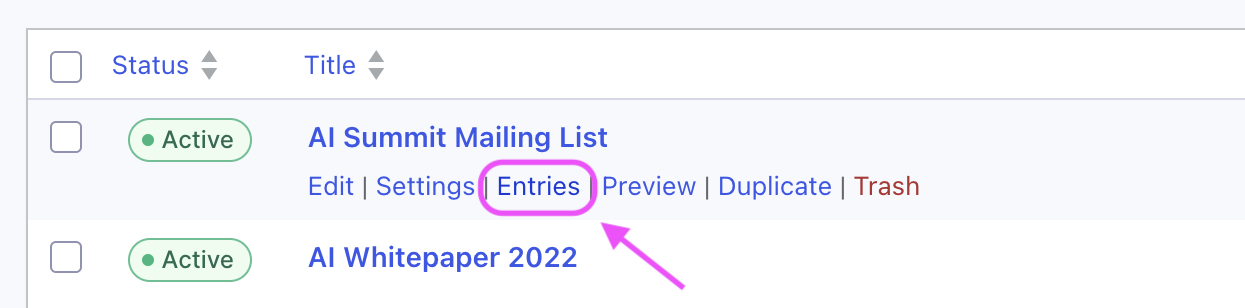
Hover over the name of an affected form and click Entries.
3
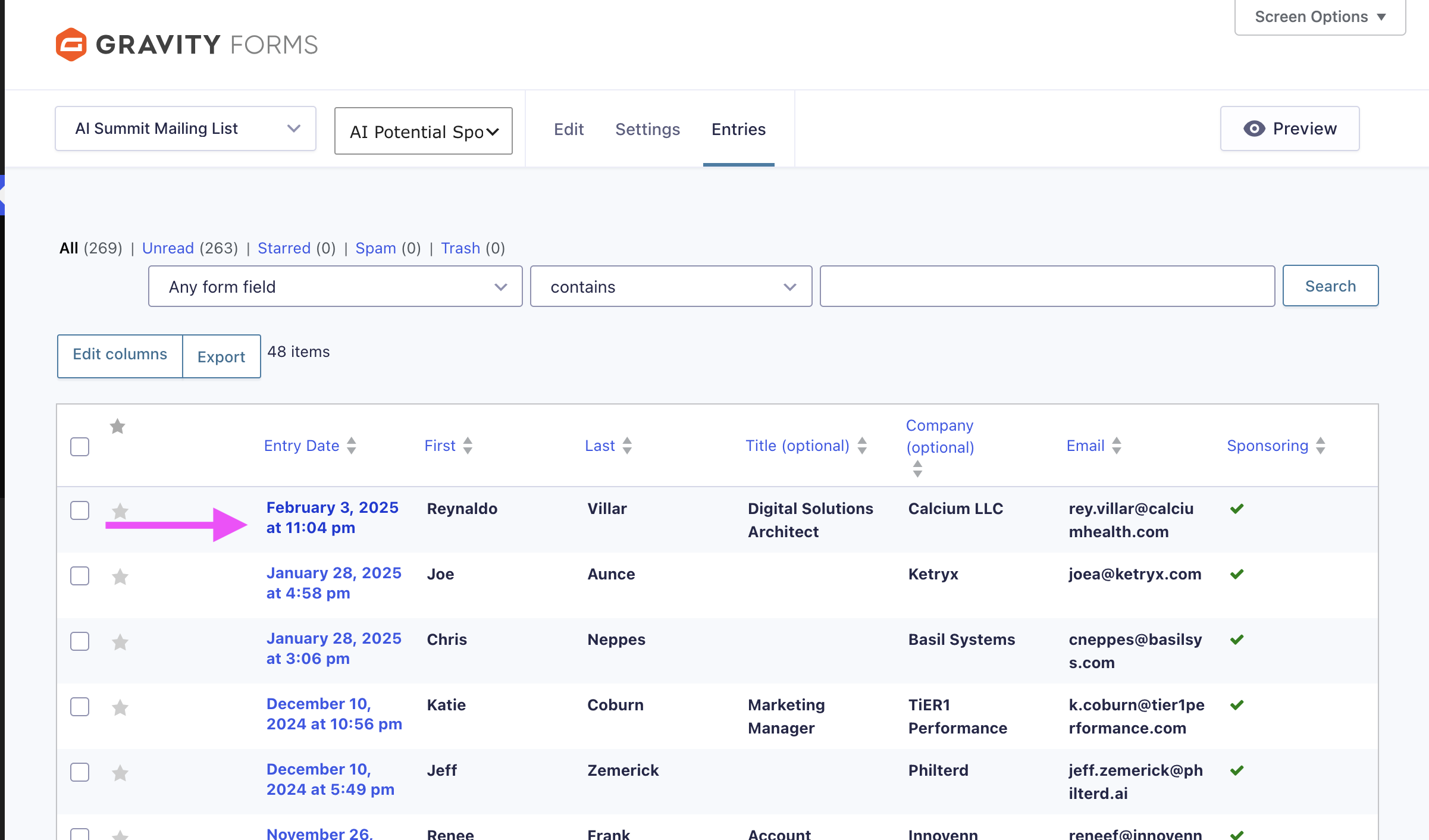
Click the blue date in the first column of the most recent entry.
4
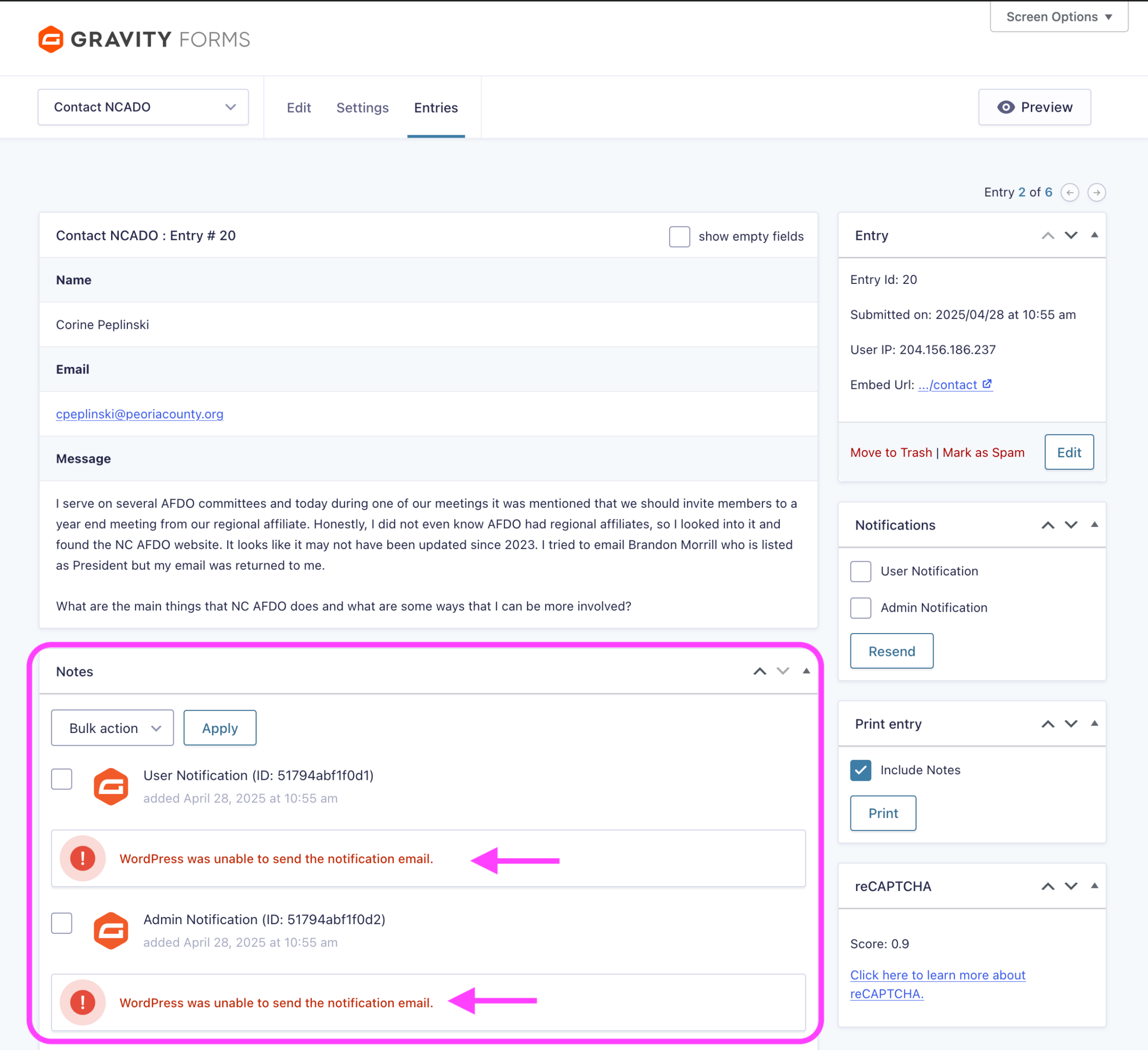
Scroll down to the Notes section. A red exclamation icon with WordPress was unable to send the notification email means this submission’s emails never went out.
5
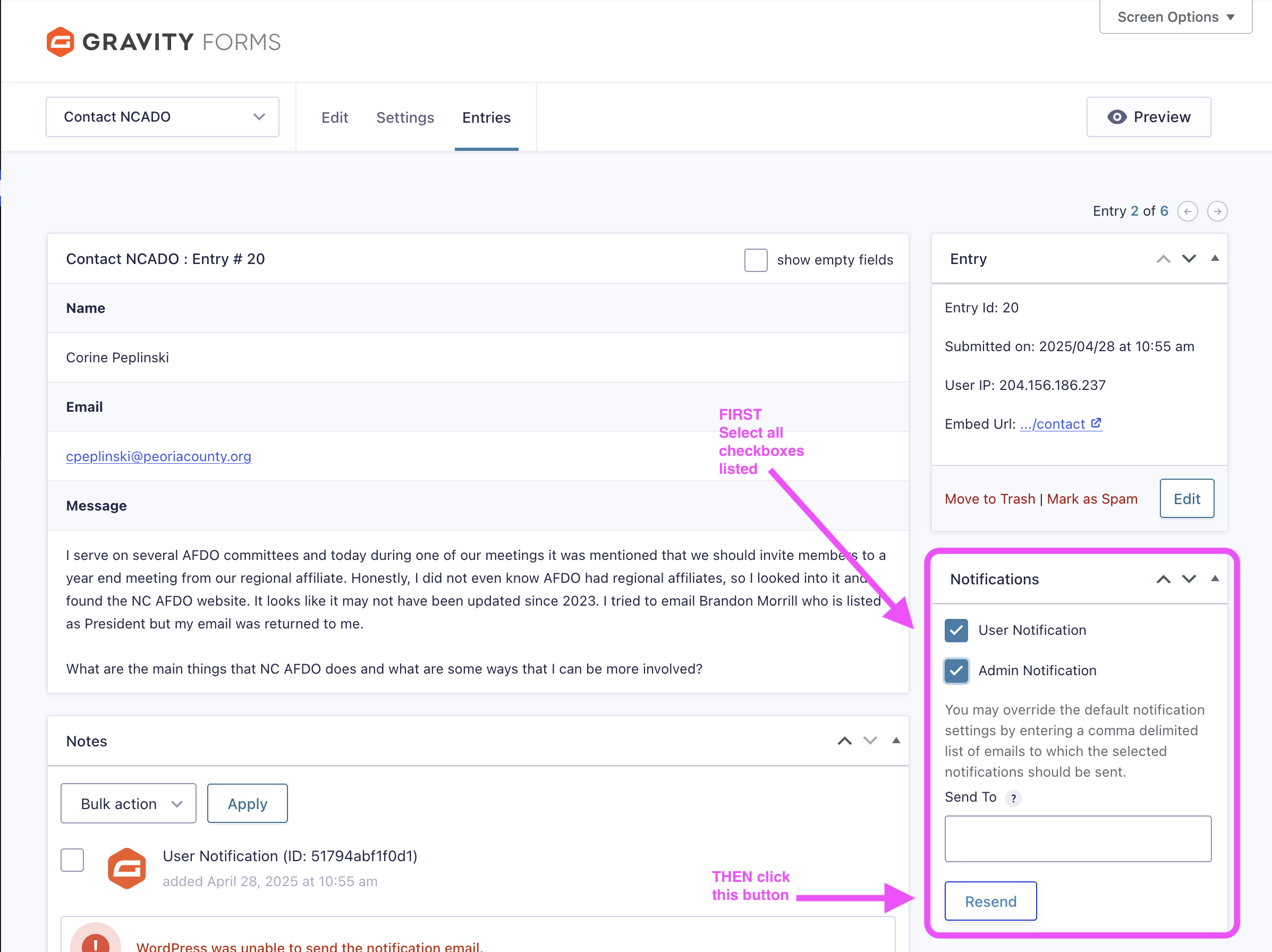
In the Notifications box on the right, tick every checkbox (for example User Notification and Admin Notification), then click Resend.
6
A green check with Notifications were resent successfully confirms it worked.
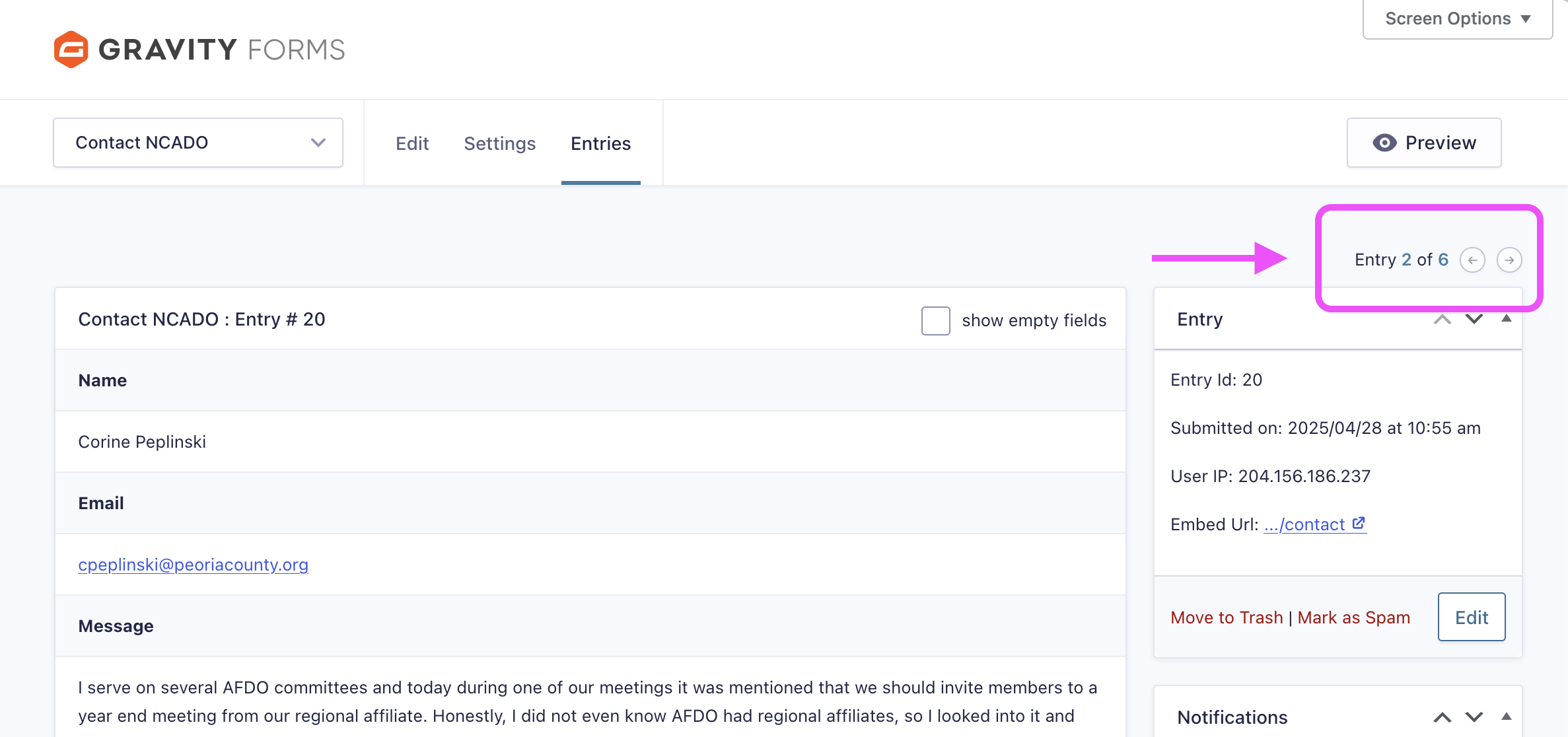
Resending sends the original submitter their confirmation late. That is expected.
Finish up
- Reply in the Website Alerts Teams thread with what you did, for example: “Reconnected Outlook on afdo.org, resent 4 entries on the Contact form.”
- Escalate to Marie Kyle, or to Altek if Marie is out, when:
- Reconnect fails or shows a different error.
- The same site alerts again within a few days.
- The alert says URGENT and you cannot finish Part 1 within an hour.